Get into your box's back-office
How to get into the back-office once the gérant gives you access, and what you find there.
The Wodloop back-office is the site where the box runs its classes, members and programming. The gérant can give you limited access: they choose what you can do, and at which boxes.
Getting in the first time
- The gérant adds you to the team. If you don't have a Wodloop account yet, you get an email "[your box] added you as a coach on Wodloop".
- Open the link in the email (good for 7 days), pick your password and click Confirm account. If you already have a Wodloop account, for example for the member app, there is nothing to create: you keep the same email and password.
- The gérant then gives you back-office access. You get a second email, "You now have access to [your box]'s back-office", naming the boxes it covers.
- Click its button. If you already have a password, sign in on wodloop.com with Sign in. If you never picked one, the button opens the Set your password. page instead: once you confirm, you land straight in the back-office, and the same password works in the member app.
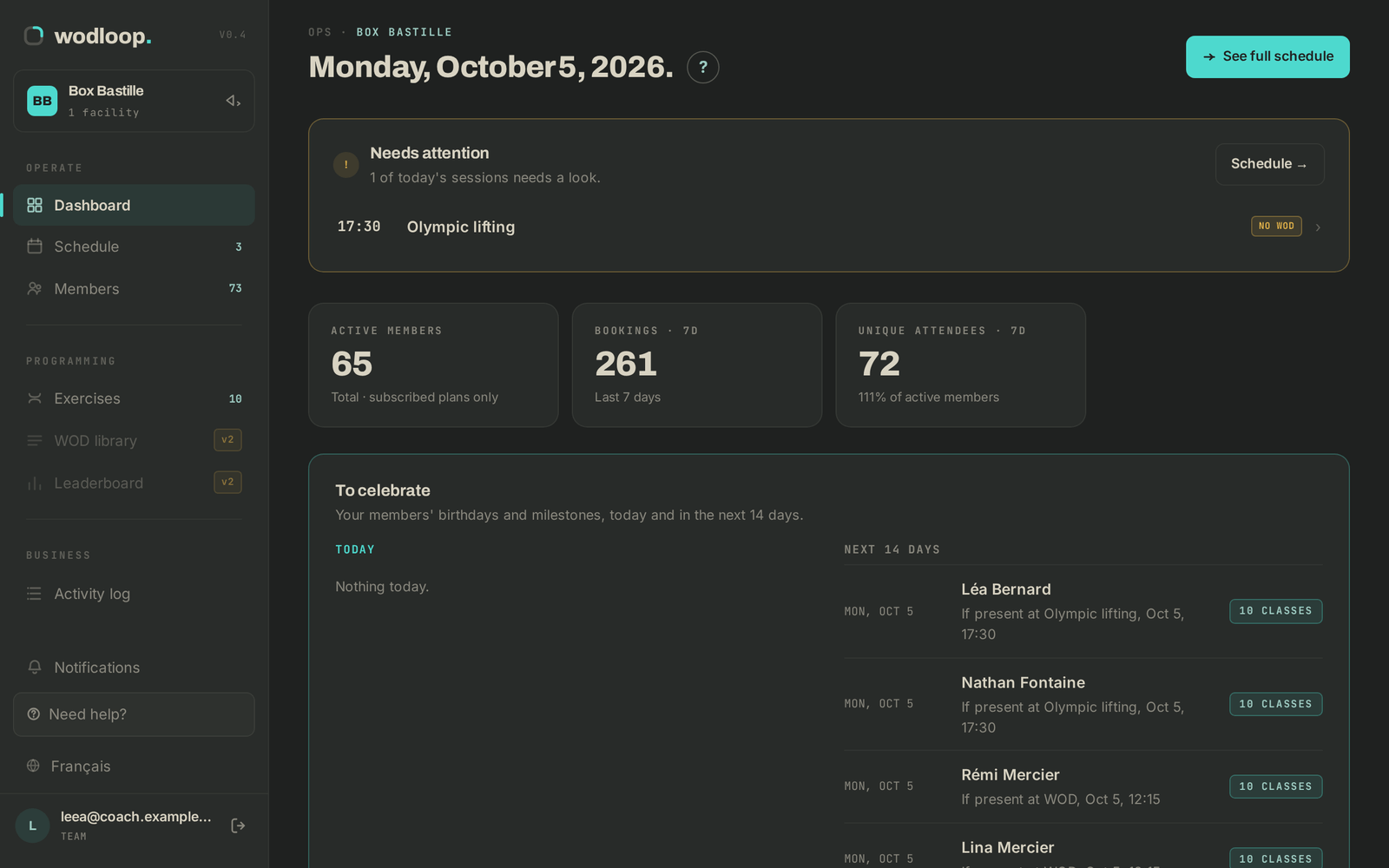
- You land on the box's Dashboard.
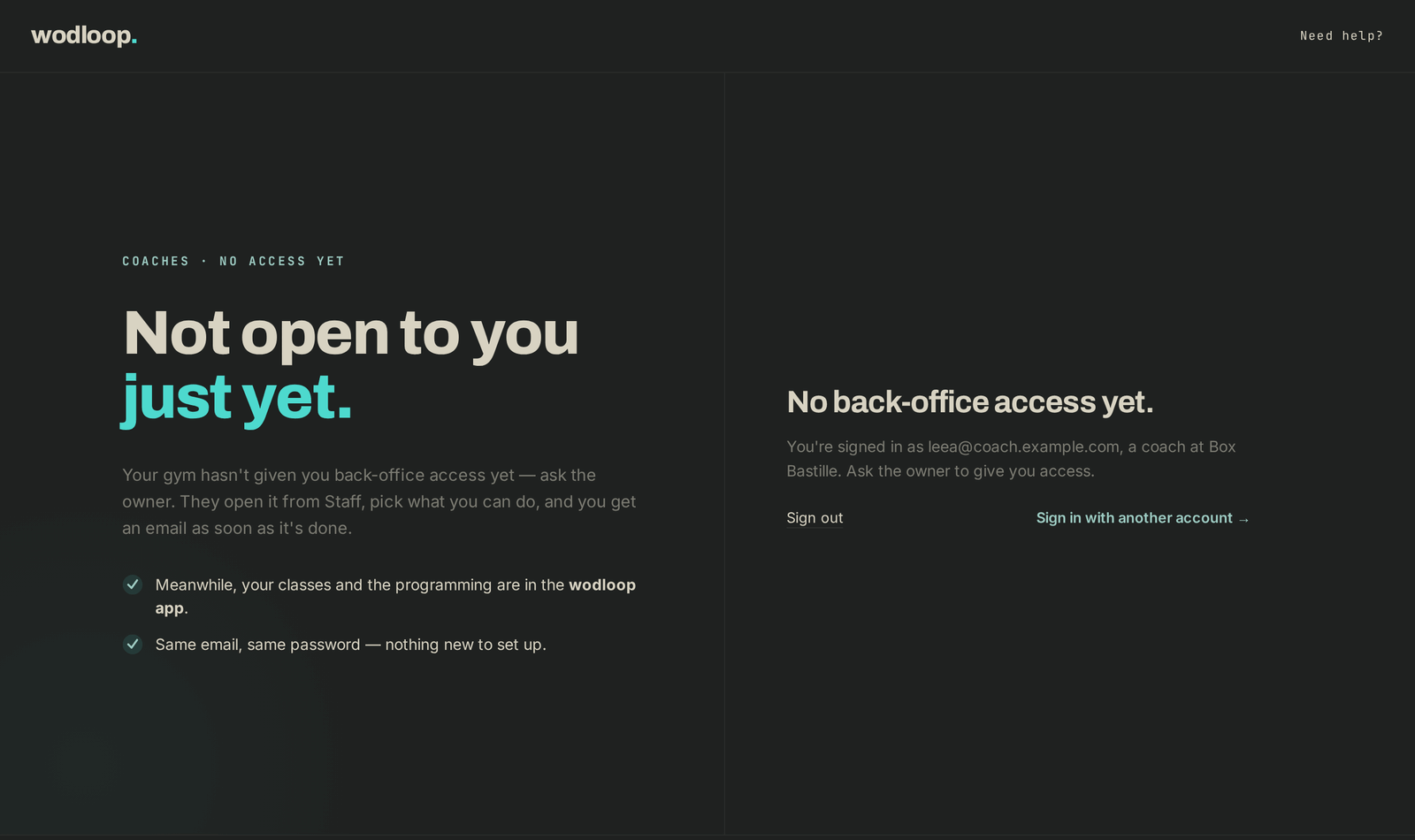
If you see No back-office access yet., you're signed in as a coach of the box but the gérant hasn't opened the back-office to you yet: ask them. You'll get the email as soon as it's done; meanwhile your classes and the programming are in the Wodloop app. If you see Nothing to manage here. instead, the account you're signed in with isn't a coach anywhere: check the address, or use Sign in with another account →.
What you see
- The menu only lists the pages you're allowed to open. With the default "Coach" access: Dashboard, Schedule (with its Programmation tab), Members (read only), Exercises and Activity log.
- Under your name, at the bottom of the menu, it says TEAM (not OWNER).
- The facility switcher only lists the boxes you have access to.
- The Activity log only shows your own actions.
What you can't do
Business settings (bank details, Stripe), adding a facility, managing access, deleting a member for good and closing the box stay with the gérant. On a page you're not allowed to open, you're sent back to the dashboard with the message "You don't have access to this page."
If it goes wrong
- Link expired or invalid: ask the gérant to resend the invitation from your coach page; the new link replaces the old one, which no longer works. You can also choose "Forgot password" in the Wodloop app, or Forgot password? on the sign-in page, with the same address.
- No back-office access yet. page: the gérant hasn't given you access yet, ask them.
- Nothing to manage here. page, a box missing or a page refused: ask the gérant to check your access and the address they used.
- A bug or an unexpected error: write to Wodloop support, support@wodloop.com.