Take the roll call from the app
Your planning and the roll call in the Wodloop app, with coach mode.
Coach mode puts your sessions and the roll call in the Wodloop app, on your phone. It is switched on box by box, wherever the gérant added you as a coach.
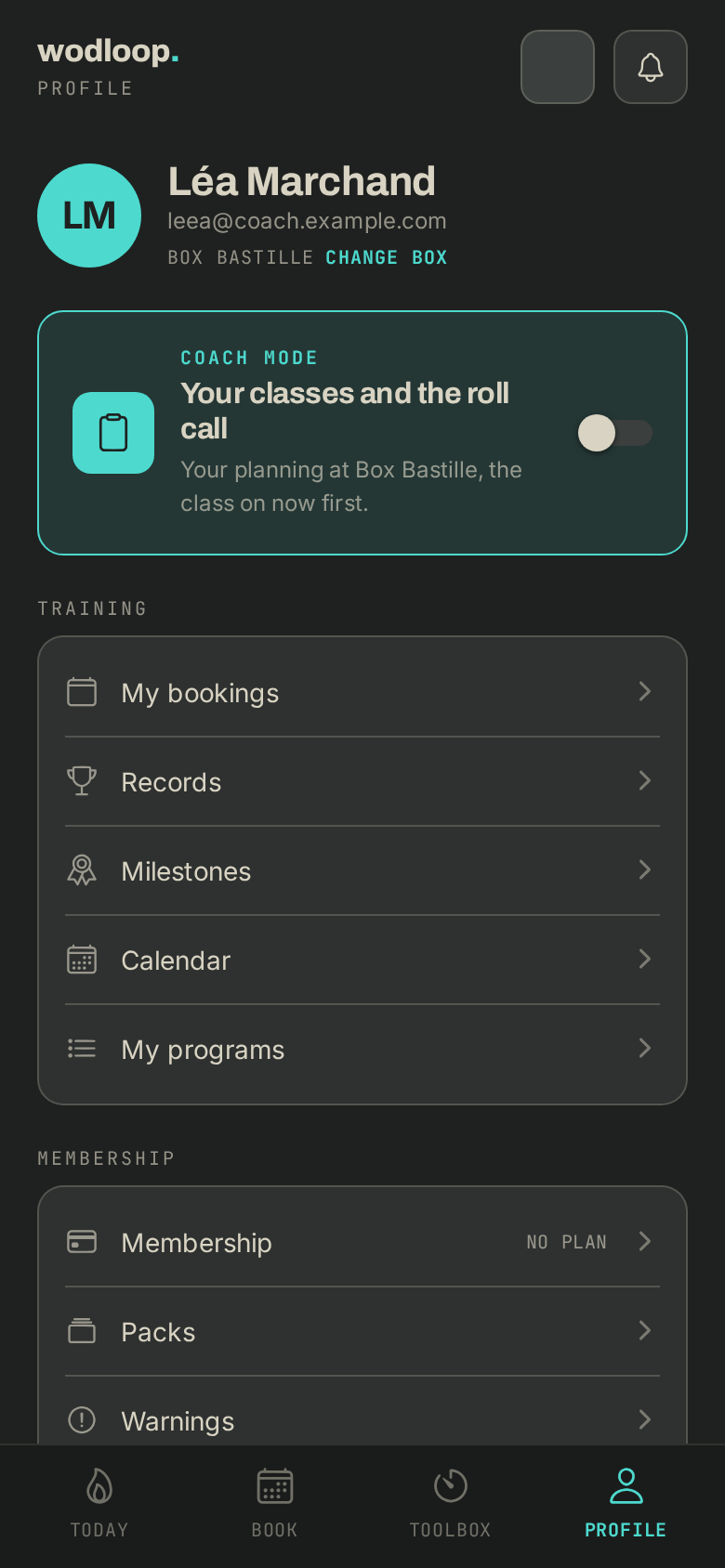
Switch coach mode on
- In the app, pick the box where you coach with the logo at the top of the screen.
- Open Profile and tap the Coach mode card.
- The bottom bar becomes Planning, Toolbox and Profile. From then on the app opens on your planning at that box. To go back to the member tabs, tap the card again.
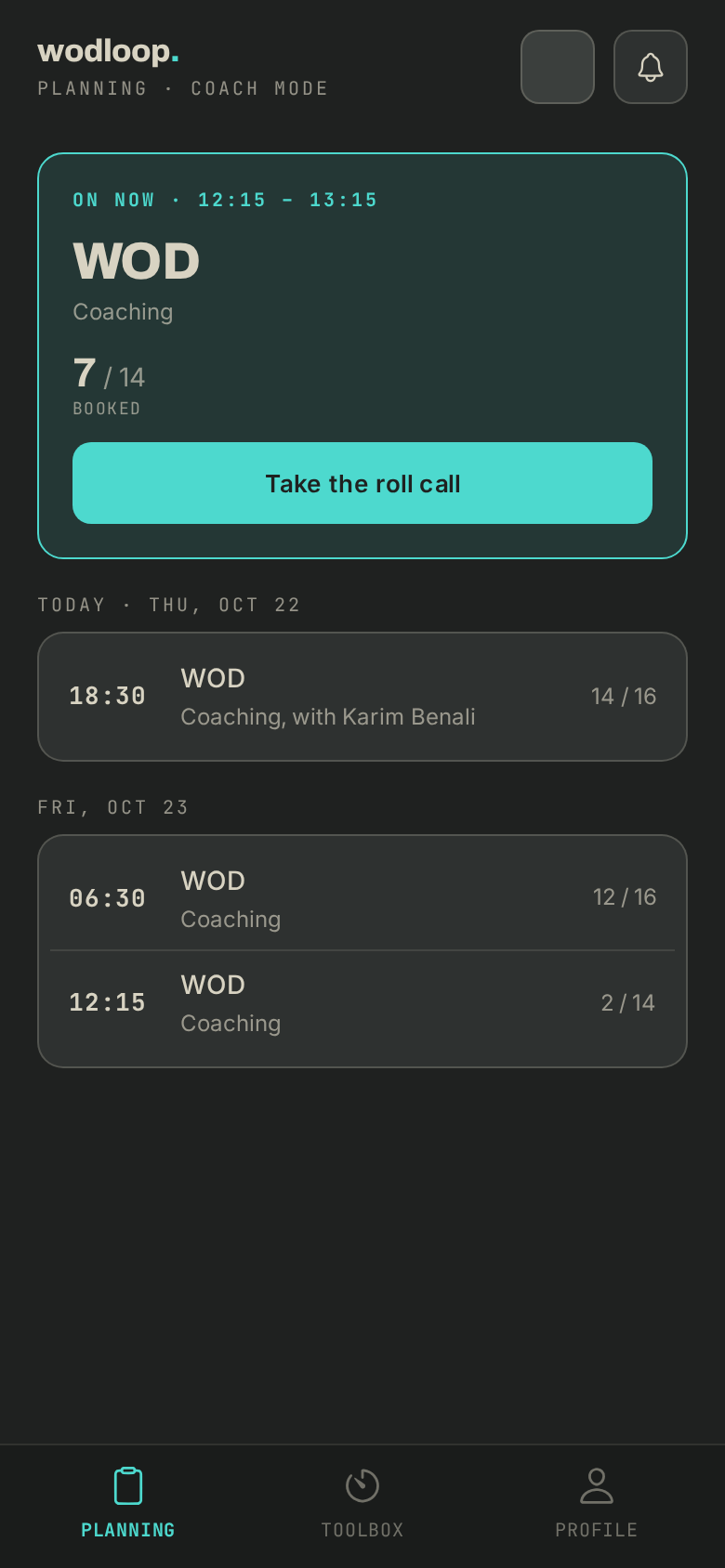
Your planning
At the top, the session on now or the next one, with who is booked. Below, today's sessions and the next two weeks', with your role (coaching or on site) and the WOD's name. A past session still waiting for its roll call shows "Roll call due".
With the "Attendance" access, you also see All classes at the box, not only yours.
Take the roll call
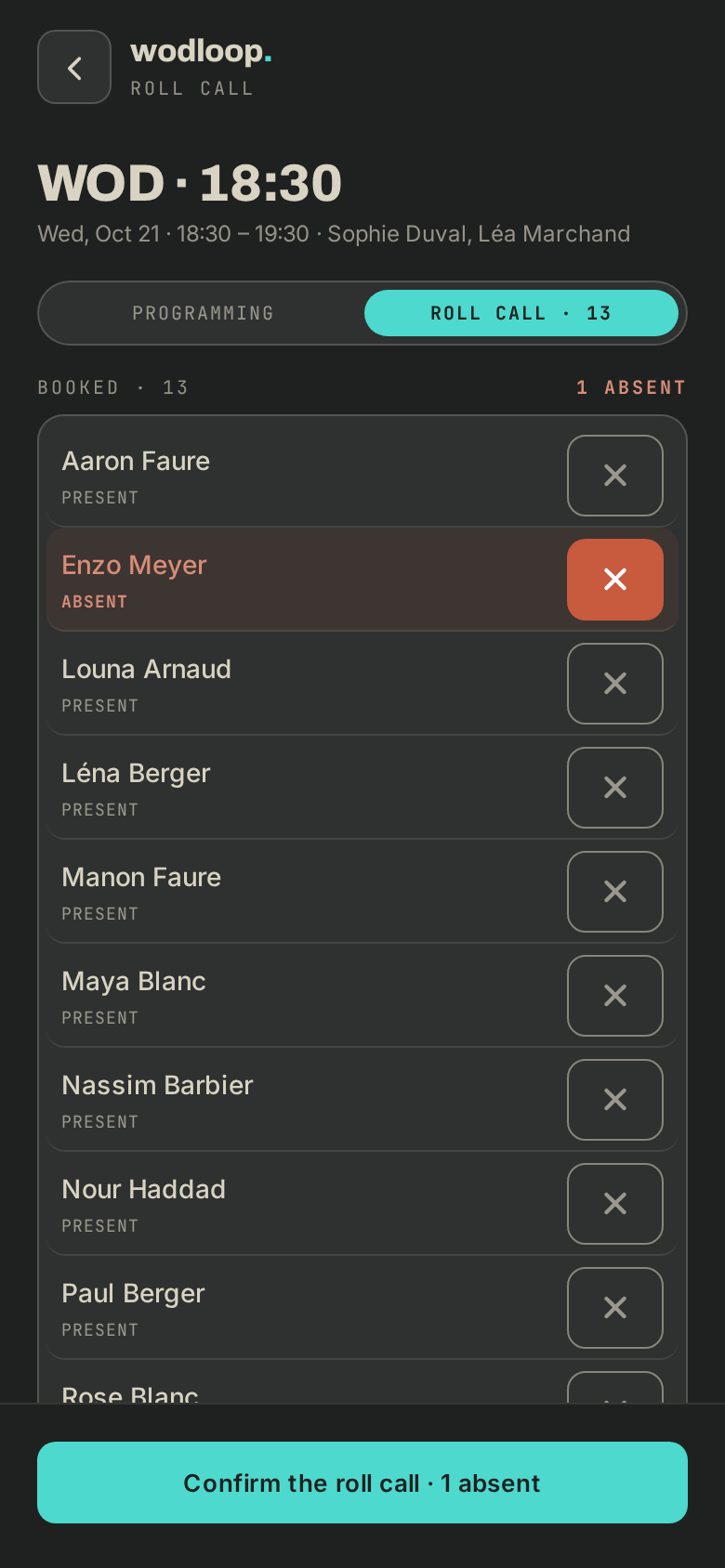
- Open the session. Before it starts, it opens on Programming: the cycle, its week and today's WOD.
- Once the session has started, switch to Roll call. Tap the cross of the absent ones only.
- Tap Confirm the roll call. The sheet shows how many are present and absent, and what each absence does. Tap Confirm.
Everyone you did not mark absent counts as present.
Correct a mistake
Tap a member marked absent, then Mark present. Their strike is taken back. A correction is possible for 7 days after the session.
If it doesn't work
- No Coach mode card on the profile: you don't coach at the selected box, ask the gérant.
- "You don't run this class.": the session isn't yours, and your access covers only your sessions.
- A bug: write to Wodloop support, support@wodloop.com.