My availability
Who sets your availability, and how the back-office flags a session that doesn't fit.
Your availability is the weekly slots when you can coach. It is used to spot conflicts when the gérant assigns you to a session.
Who sets it
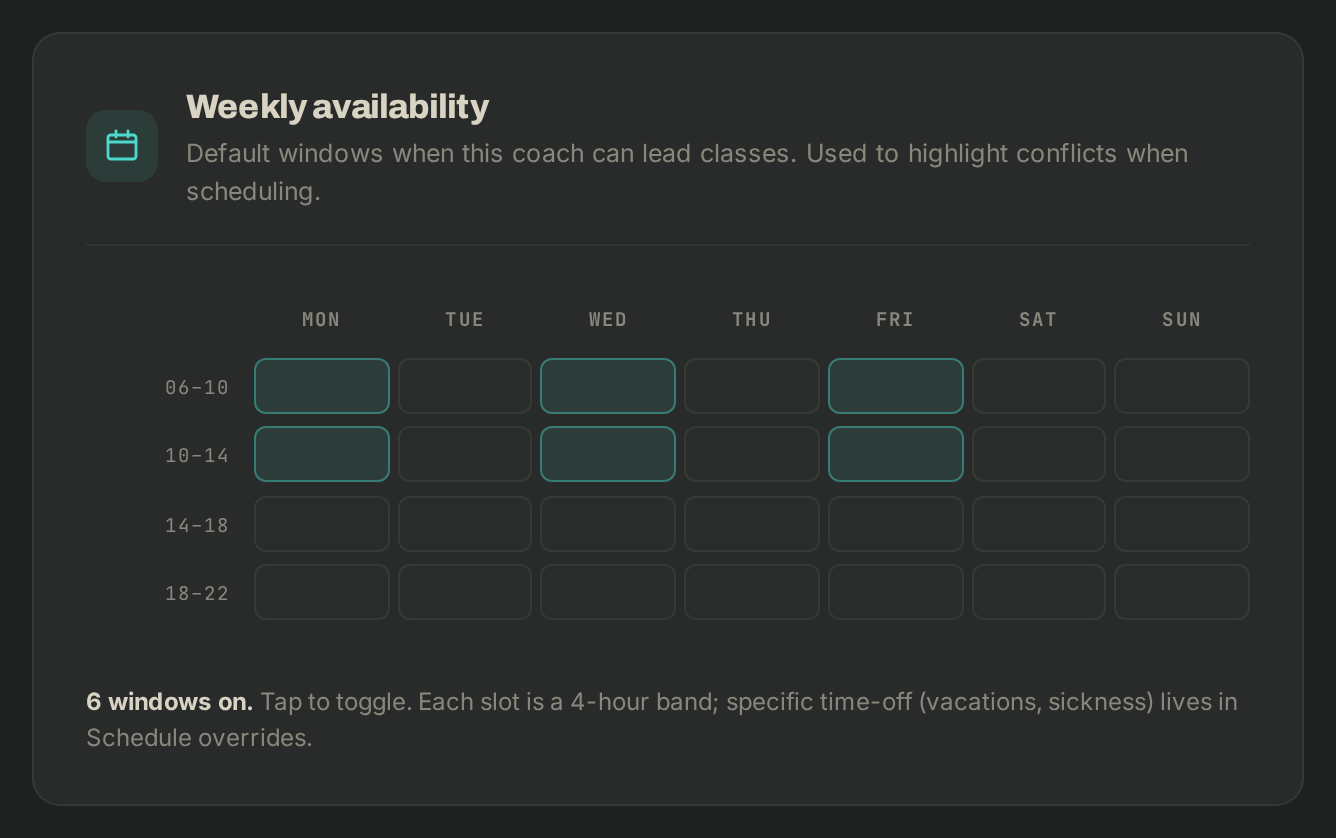
You can't change it yourself with "Coach" access. The gérant, or someone with access to the Staff page, sets it on your coach profile, under Weekly availability: a 7-day grid split into 4-hour bands, each switched on or off.
- Tell the gérant which days and bands you're available each week.
- For a one-off absence (holiday, illness), tell them too: it doesn't go in the grid, but in the Overrides of the Schedule.
How a conflict shows
A conflict is a warning: the session stays assigned, nothing is blocked.
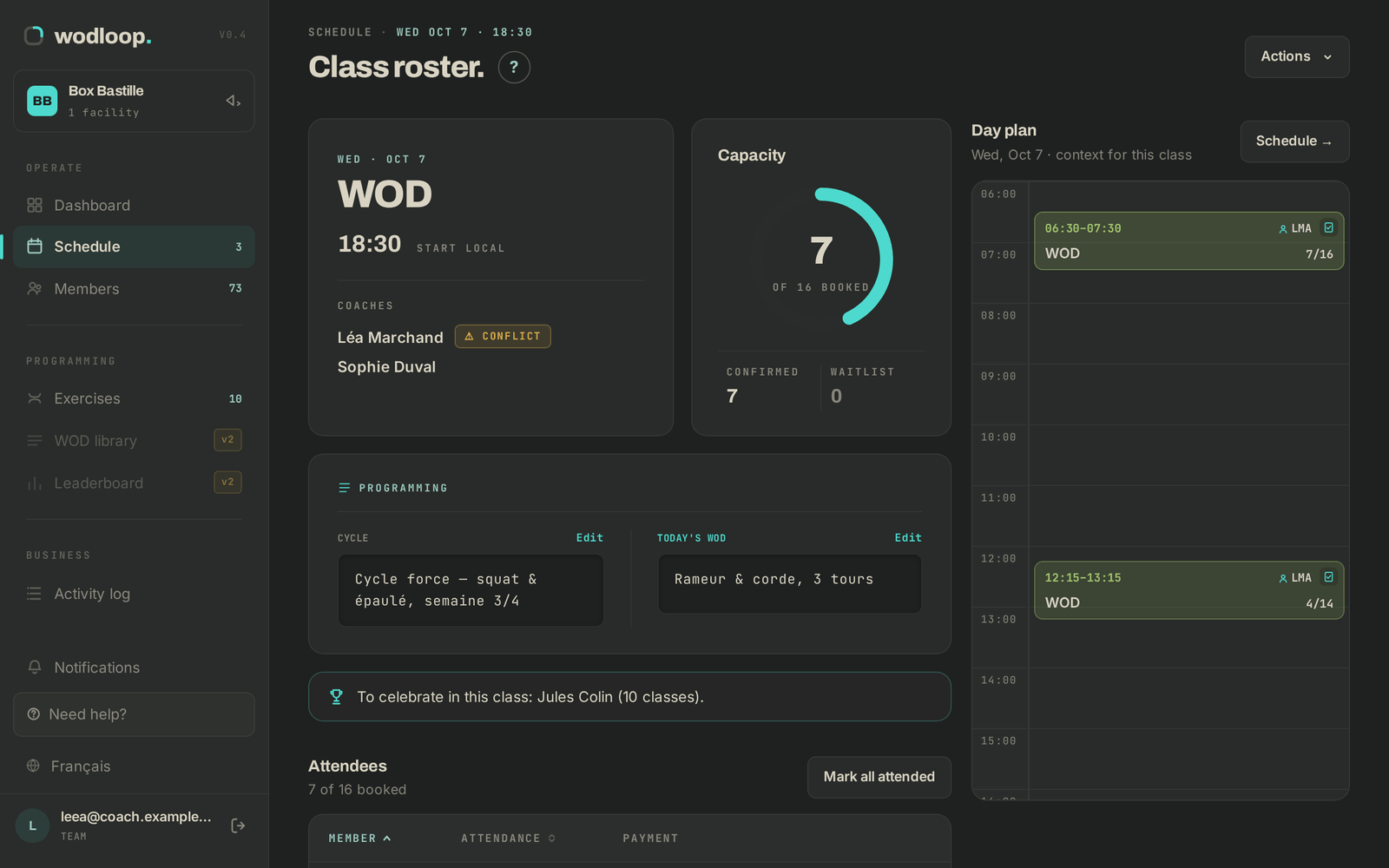
- On the session's page, under COACHES, ⚠ CONFLICT appears next to your name. Hover it to read why: "Scheduled outside this coach's availability" or "This coach is double-booked with another class".
- On the Schedule grid, the session shows ⚠ COACH.
- On the Dashboard, the Needs attention card lists the session with Coach conflict.
If you see a conflict on one of your sessions, tell the gérant: they adjust your availability or give the session to another coach. The gérant's guide Coaches and sessions covers their side.
If it goes wrong
- Your availability is wrong, or a conflict shouldn't be there: ask the gérant to fix your coach profile.
- You need to manage the team yourself: ask the gérant for access to Staff.
- A bug: write to Wodloop support, support@wodloop.com.