Write the WOD
Post a day's WOD so it shows on the sessions and in the members' app.
The WOD goes in a day note: a text tied to an activity and a date. It shows on every session of that activity that day, in the back-office and on the members' booking screen.
From a session (quickest)
- Open the session from the Dashboard or the Schedule.
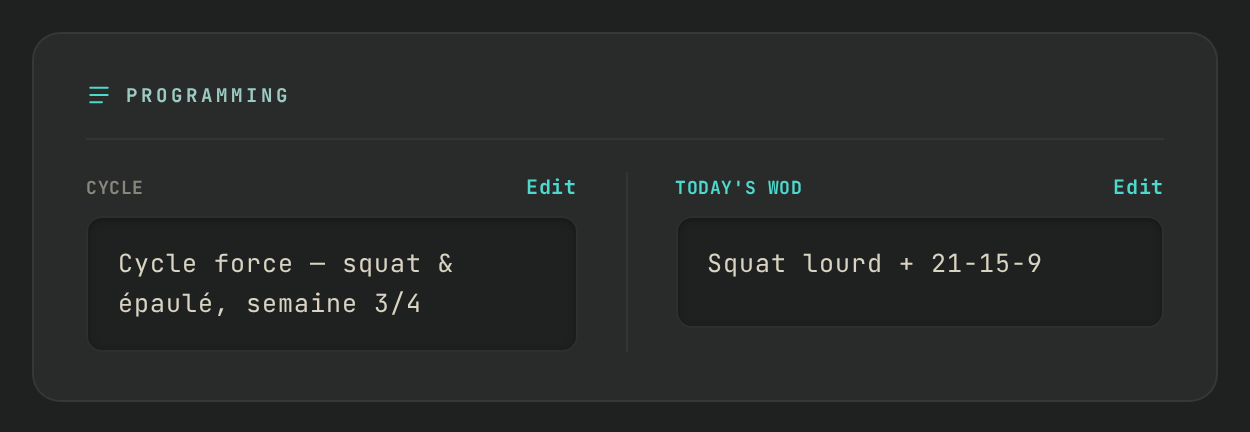
- In the Programming block, next to TODAY'S WOD, click + Add (or Edit if there is already a WOD). On the Schedule grid, the small WOD icon at the top right of a session does the same.
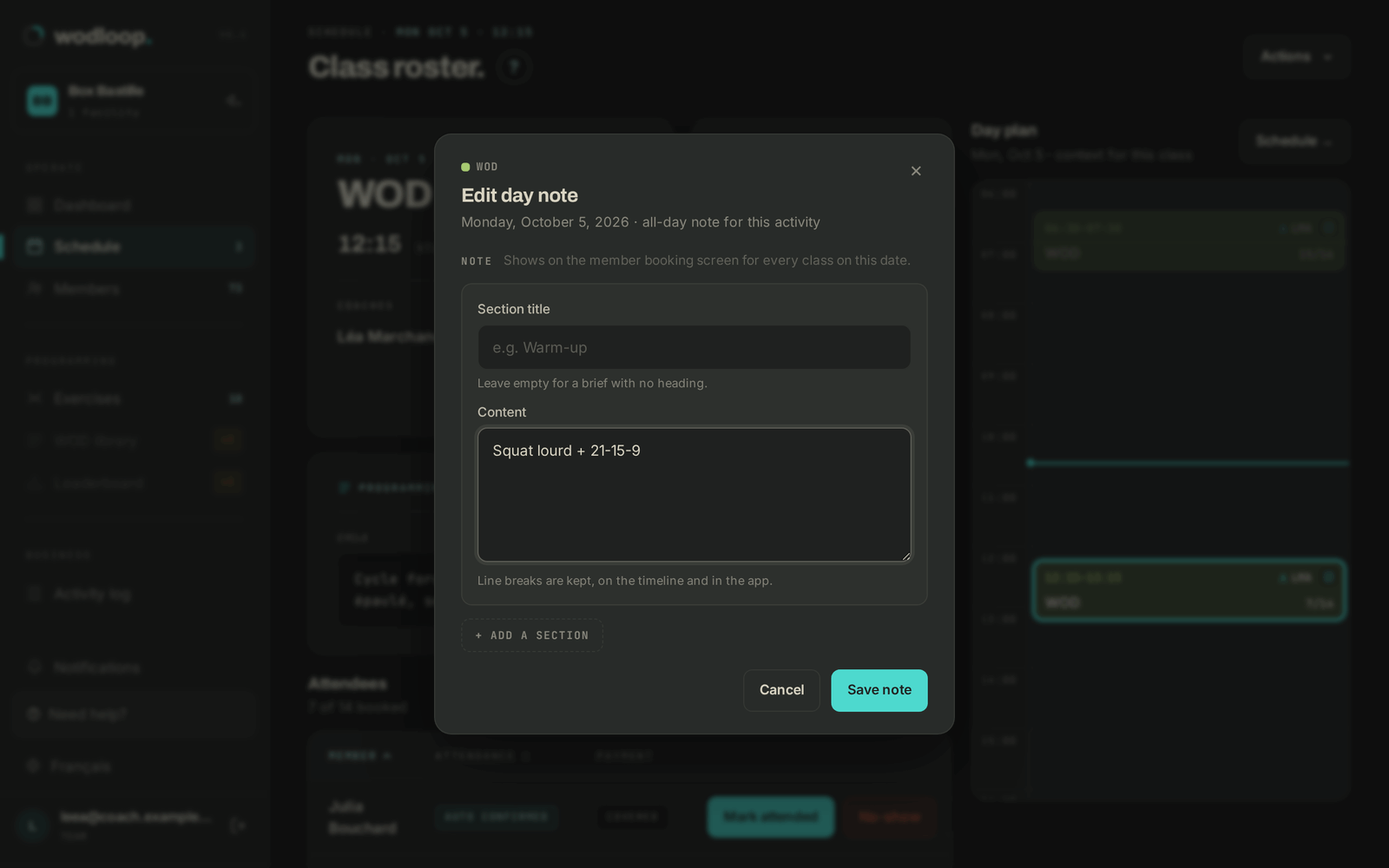
- Split the day into sections if you like: Section title (for example "Warm-up") then Content. Add more with + add a section. Line breaks are kept.
- Click Add note (or Save note). The message "Day note saved." confirms it.
From the Programmation tab
- Open Schedule, then the Programmation tab: each activity has its row, week by week.
- Click Workout, or an empty cell on the timeline.
- Pick the Activity and the date, then write the Workout brief.
- Under Advanced settings, Limit to a time range lets you target a single slot (for example the 10:00 class).
- Click Save programmation.
For a block of several weeks, New cycle creates a Cycle that shows on every session in its date range. The gérant's guide WOD and cycles covers cycles in detail.
If it goes wrong
- The Programmation tab doesn't show, or saving is refused: your access doesn't include programming, ask the gérant.
- No activity to pick: the box doesn't have one yet, ask the gérant to create one.
- A bug: write to Wodloop support, support@wodloop.com.