Your box's terms
Read and accept your box's terms before a purchase, and find them again later.
Your box can publish its own terms as a PDF: house rules, bookings, memberships, refunds. The box is the one selling you your plan, so the box sets them. If your box hasn't published any, the app asks you nothing.
Before your first purchase
The app shows them when you're about to pay: taking a membership or a pack, or booking a class paid on its own. A class covered by your membership or a pack, or a free class, books without accepting anything.
- A sheet titled The rules of … opens instead of the payment.
- Tap Read the terms: the PDF opens in the app, with its version number and date.
- Tick I've read and accept the terms of ….
- Tap the button at the bottom: it carries your purchase's own label (for example Book · …), or else Continue to payment. Your purchase carries on where you left it.
Once you've accepted, the app won't ask again unless there's a new version. If your box has several locations, the same terms cover all of them.
Find them again later
- Go to Profile > Documents.
- Your boxes are listed there, each with its Box terms row.
- Tap the row to open the PDF again.
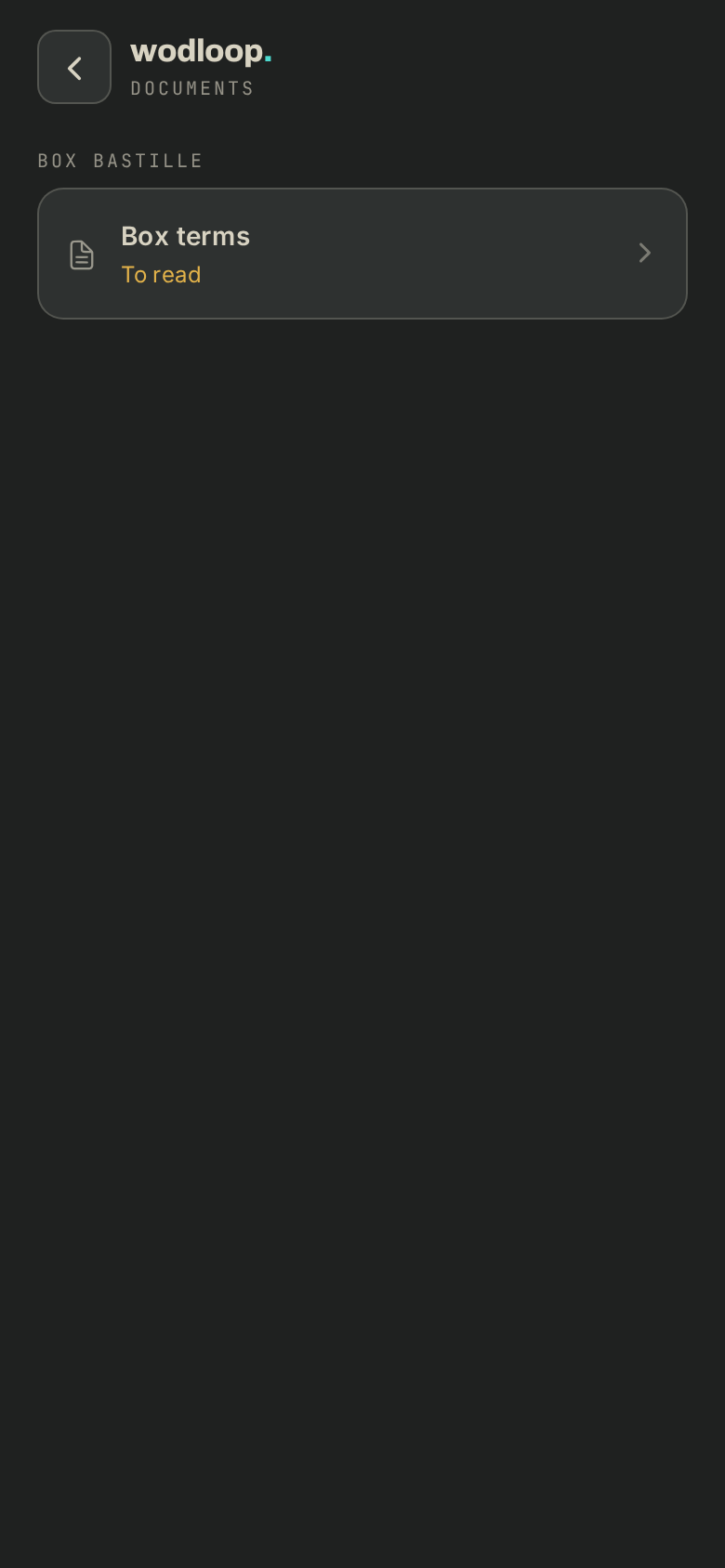
Under the row, you see where you stand:
- Version … · accepted on …: you accepted the version in force.
- New version to read: your box has published a new one since.
- To read: you haven't accepted them yet.
The confirmation email for a membership or a pack also names the version you accepted, with a link to read it again (valid for 30 days).
A new version
When your box changes its terms, the app asks at your next purchase: … changed its terms, marked Updated on …. Read the new version, tick I've read and accept the new version., then carry on.
If it goes wrong
- Couldn't open the terms or Couldn't save your acceptance: check your connection and try again in a moment.
- Your box hasn't published any documents yet.: it has no terms in the app, so there's nothing to accept.
- A question about what the terms say: contact your box. Its details are on its page: tap your box's logo at the top of the screen (with several boxes, About this gym), under Contact.
- A problem with the app itself: write to Wodloop support, support@wodloop.com.