Notifications and emails
Find your notifications and pick how each one reaches you.
The app lets you know when a spot opens, a class changes or a payment is coming up. For each type, you choose whether it reaches you in the app, by push or by email.
Read your notifications
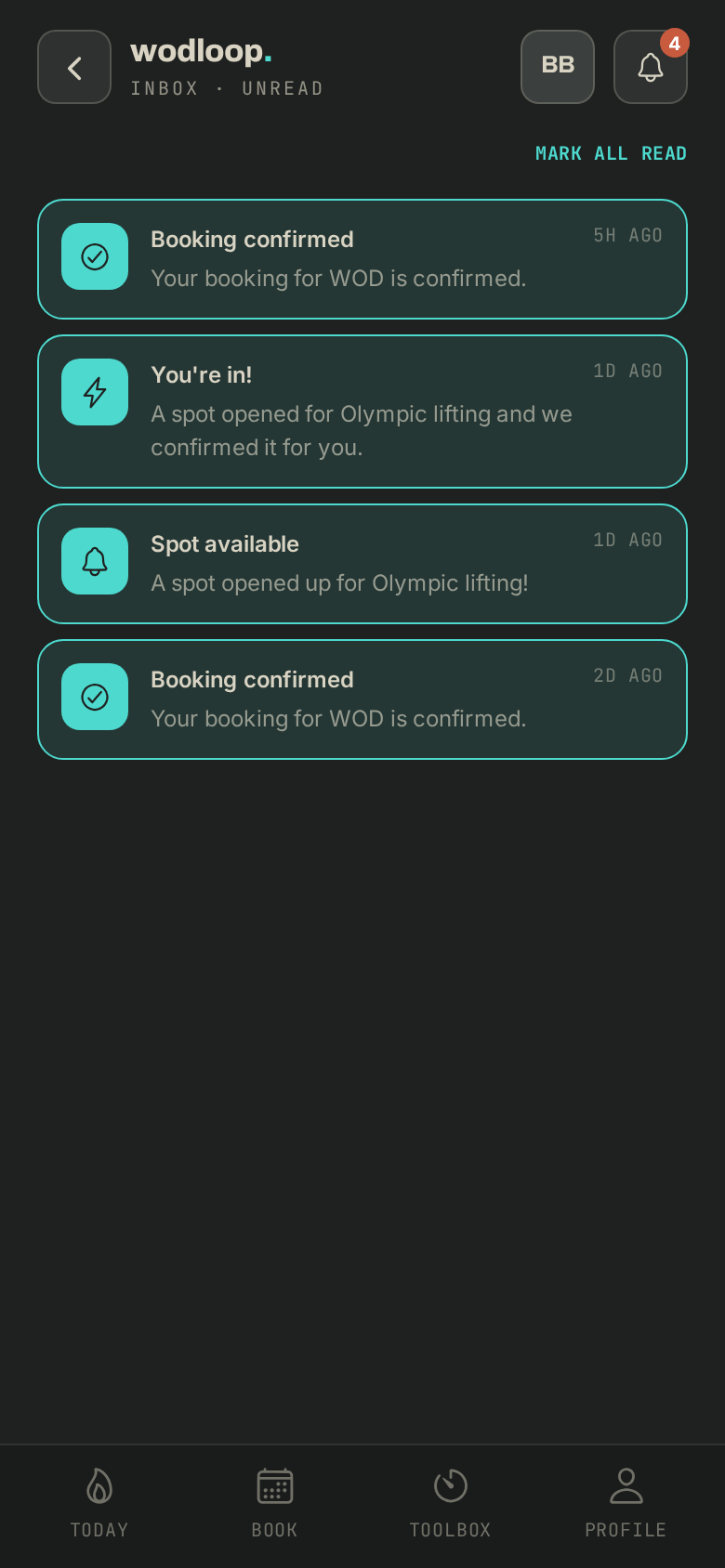
- Tap the bell at the top of the screen. The red number shows how many are unread.
- Tap a notification to open it, or Mark all read.
Pick how they reach you
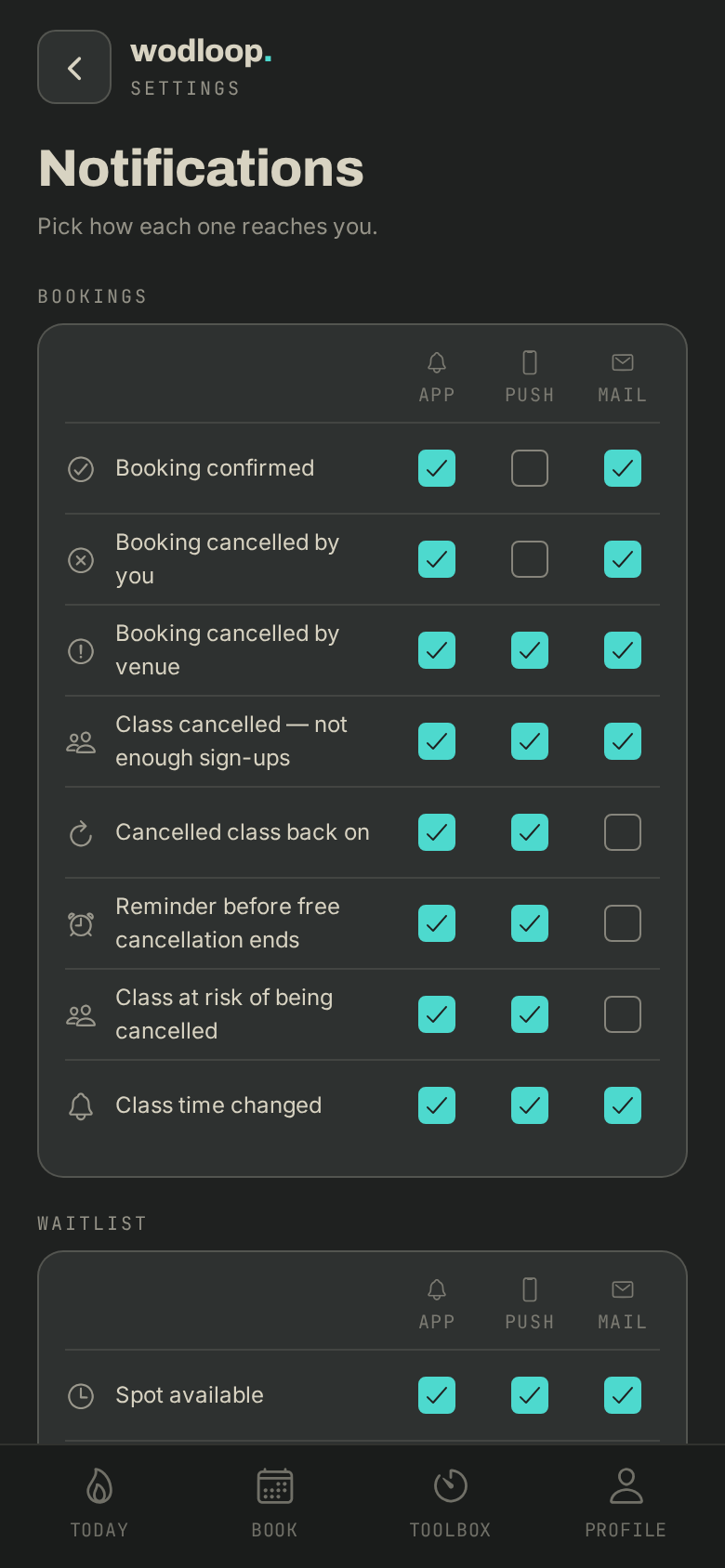
- Go to Profile > Notifications.
- Each row is a type of notification, with three columns: App, Push and Mail.
- Tick or untick each box. Your choice is saved straight away.
Turn on push on your phone
If you see Push is off on this phone, tap Turn on push. If your phone blocks Wodloop, tap Open settings and allow notifications in the phone's settings.
If it goes wrong
- Nothing shows up: check that push is allowed for Wodloop in the phone's settings, and look in your spam folder for emails.
- A question about what your box's message says: contact your box. Its details are on its page: tap your box's logo at the top of the screen (with several boxes, About this gym), under Contact.
- A problem with the app or your preferences: write to Wodloop support, support@wodloop.com.