Train at several boxes
Switch between boxes in the app and use your membership at a sister box.
One Wodloop account covers all your boxes. The schedule, WOD and plans you see are the selected box's.
Add a box
- Tap your box's logo at the top of the screen. With one box, its page opens: tap Change box. With several, tap Find another gym.
- Search for the box by name or city, tap it, then Choose this facility.
- As soon as you have a membership, a pack or a booking there, it joins Your gyms.
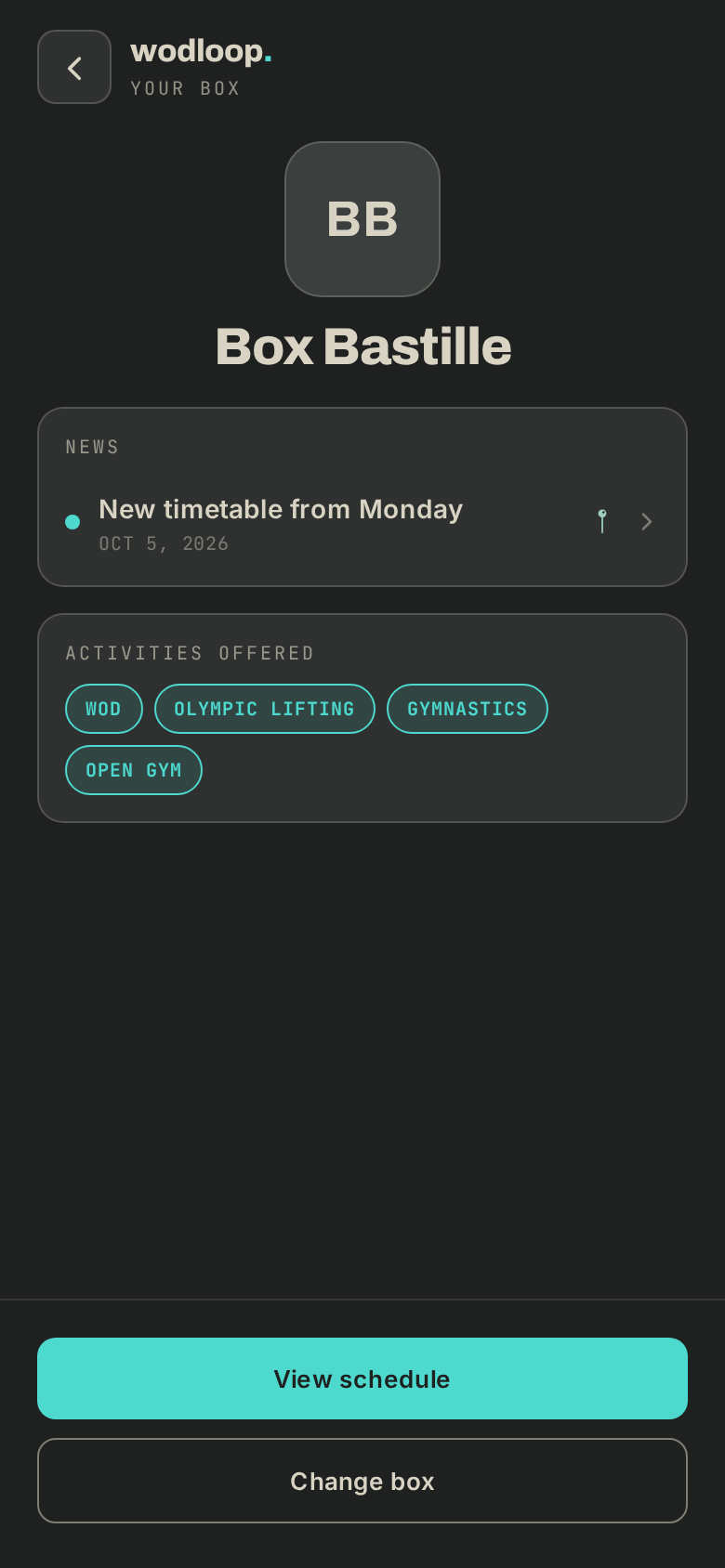
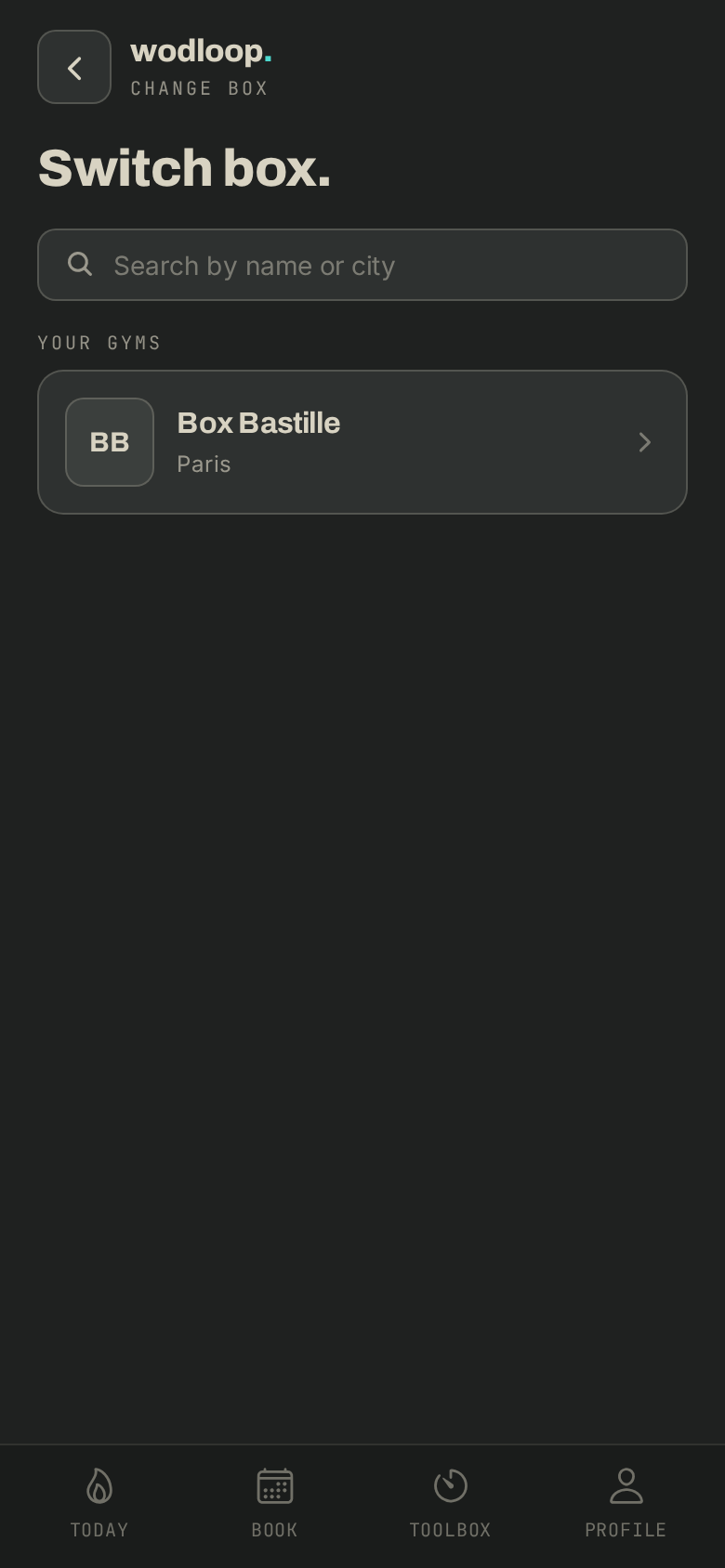
Switch between boxes
- Tap your box's logo at the top of the screen: the Your gyms list opens.
- Tap the box you want. In the Book tab, the box name above the schedule switches too.
- About this gym opens its page: description, opening hours, activities and contact.
One membership, several boxes
Some boxes share their memberships with sister boxes.
- Under Profile > Membership, your membership says Also valid at … with the boxes it covers.
- At the sister box you see Valid here · from …: you book on the same weekly allowance.
- Paying, renewing and cancelling happen at your home box.
If it goes wrong
- A sister box refuses your booking, or a question about your membership: contact your box. Its details are on its page (About this gym), under Contact.
- A problem with the app or your account: write to Wodloop support, support@wodloop.com.