Timers
Run an EMOM, an AMRAP, a Tabata or a stopwatch from the Toolbox tab.
The Toolbox tab opens on the Timer. No booking needed: use it in class or at home.
Start a timer
- Open the Toolbox tab.
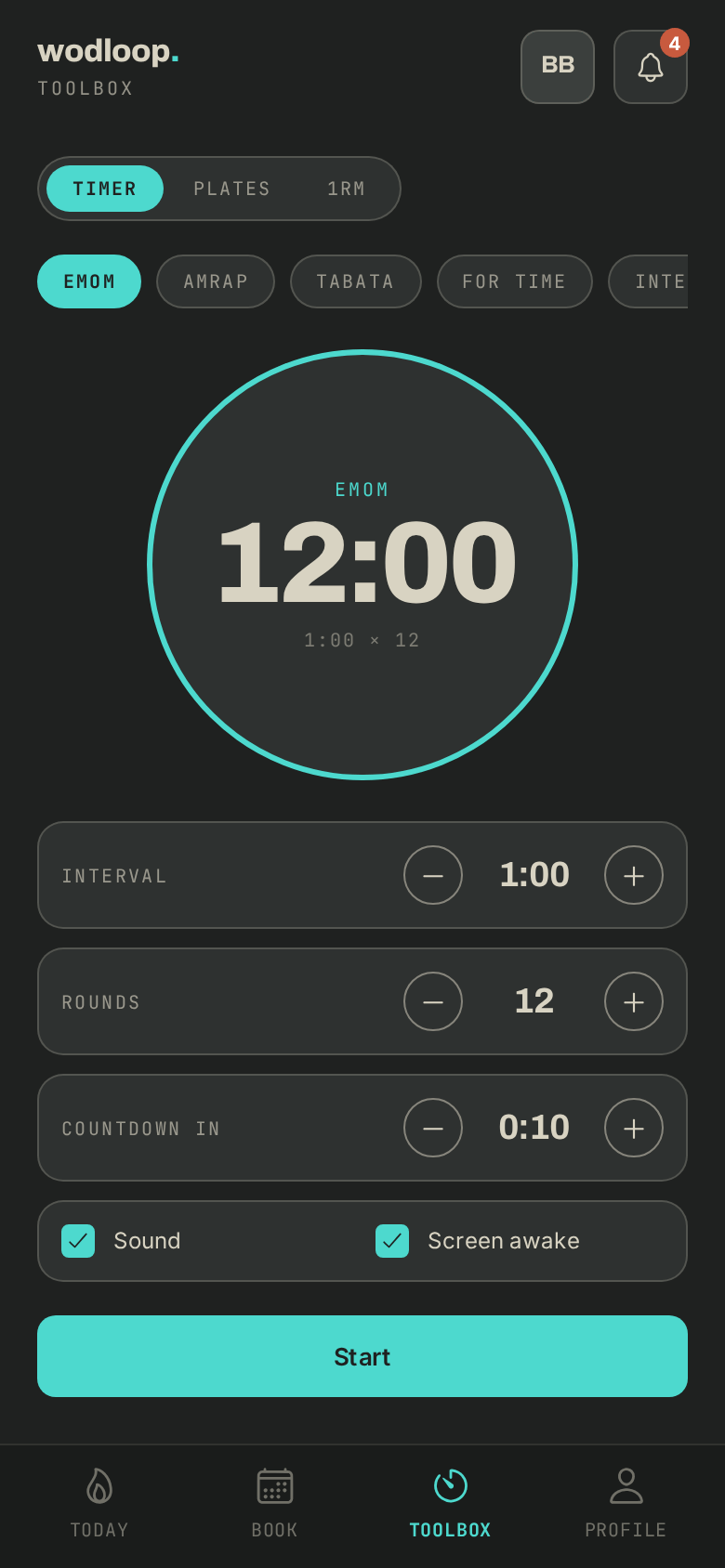
- Pick a format: EMOM, AMRAP, TABATA, For Time, Intervals, Countdown or Stopwatch.
- Set its values: Interval, Rounds, Work, Rest or Time cap depending on the format, and Countdown in for the lead-in before it starts.
- Turn Sound and Screen awake on or off, then tap Start.
- Your latest settings stay under Recent: tap one to run it again.
While it runs
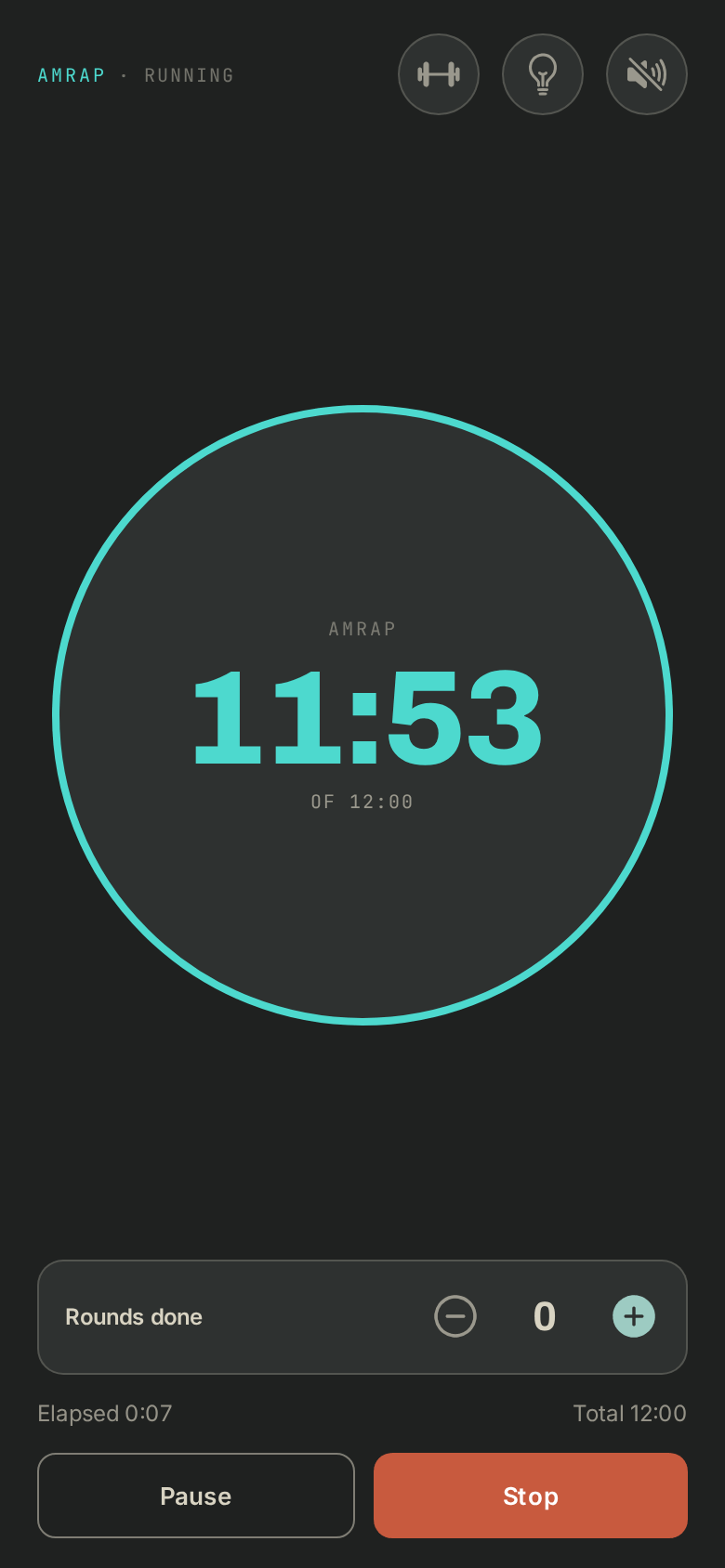
- Pause, then Resume, at any time.
- In an AMRAP, count your rounds with Rounds done.
- Stop asks you first: Stop workout or Keep going.
- At the end, Again runs the same timer once more.
The other tools
- Plates: enter the load you want, the app tells you what to put on each side of the bar. Untick the plates your box doesn't have.
- 1RM: from your max, the app works out your percentages and can Save as PR.
If it goes wrong
- No sound: check that Sound is on and your phone isn't on silent.
- A question about your box's WOD: contact your box. Its details are on its page: tap your box's logo at the top of the screen (with several boxes, About this gym), under Contact.
- A timer that freezes, or a problem with the app: write to Wodloop support, support@wodloop.com.