Add a guest to a class
Book someone in without an account, on their own or as a member's +1, as a free trial or paid on the spot.
A member brings a friend, someone drops by to try the box: add them straight to the class, no account needed. They take a seat like anyone booked.
Add a guest
- On Schedule, click the class to open its Class roster.
- Below Attendees, in the add block, switch from A member to A guest (+1).
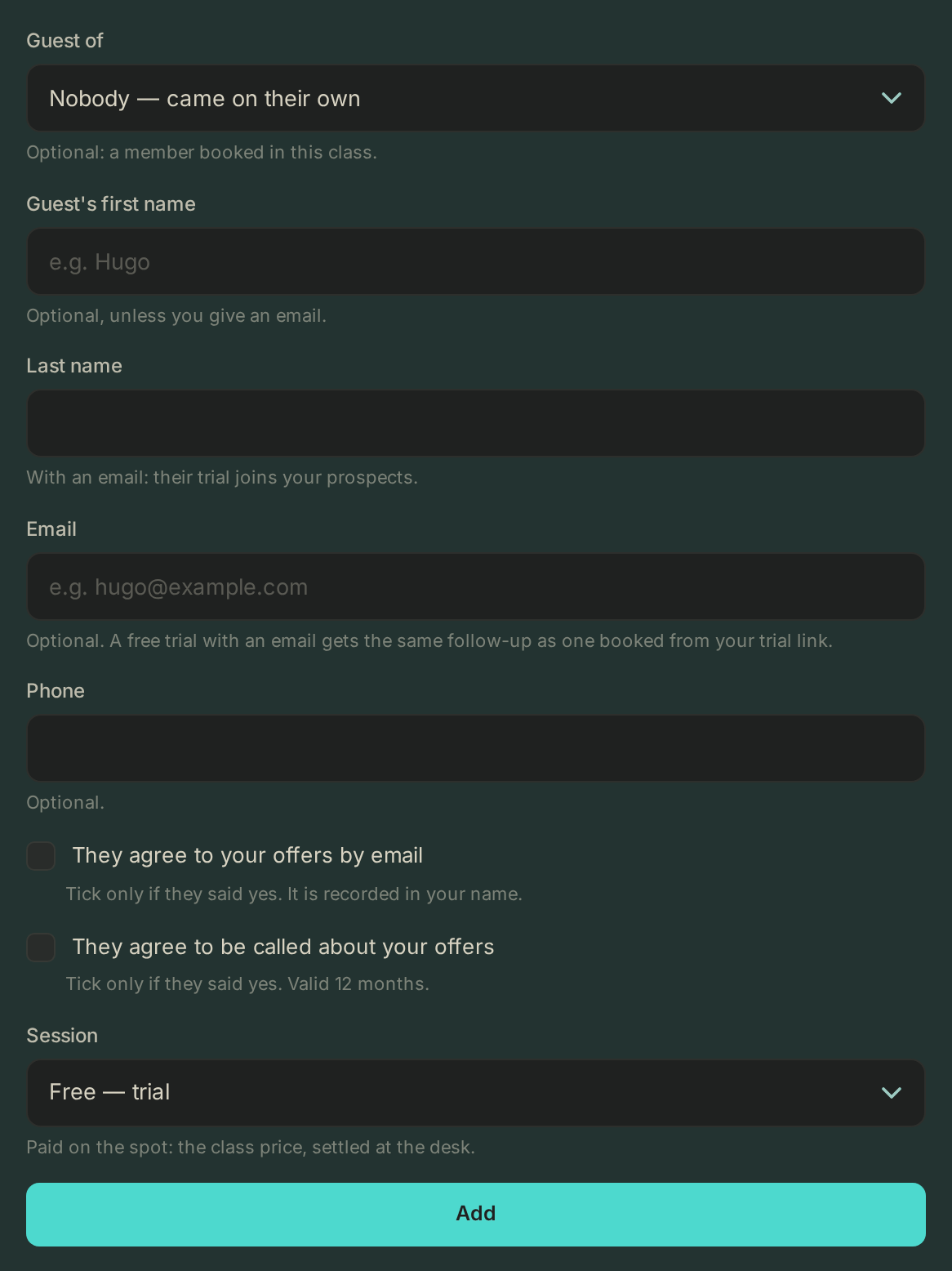
- Guest of: pick the member who brought them (they must be booked in this class), or leave Nobody — came on their own.
- Guest's first name: optional, unless you give an email.
- Session: Free — trial (the default) or Paid on the spot, the class price settled at the desk.
- Click Add.
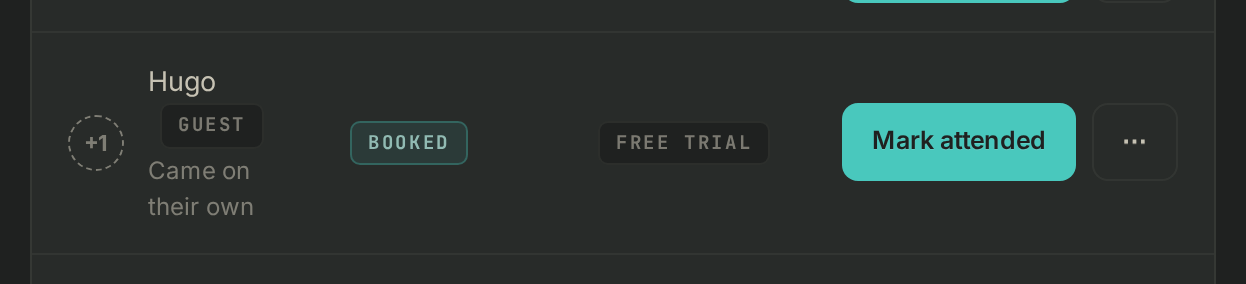
The guest shows in the list as Guest (or "Guest of" and the member's name), right under the member who brought them, marked FREE TRIAL or PAID · CASH.
A trial with contact details
Leave Free — trial and fill in the Email, and it is no longer a plain guest: it is a trial, with the same follow-up as one booked from your trial link.
- Give their Guest's first name, Last name and Email (all required then), and their Phone if you have it.
- Tick They agree to your offers by email or They agree to be called about your offers only if they said yes: it is recorded in your name.
- They join your Prospects and follow-ups. In the list they carry a Trial chip, and their name opens their prospect record.
One trial per person: if they already had one at your box, you can allow another from Prospects. If the class already has its share of trials, Add anyway lets you add one more.
When the class is full
The block says so, and the button turns into Add anyway with the new head count. The class stays full in the app: nobody else can book.
Remove a guest or make them a member
Open the ⋯ menu at the end of their row:
- Remove from the class frees their seat, once you confirm.
- Make them a member opens the New member form with their first name filled in. Their class moves to their new account.
If it goes wrong
- "A guest's member must be booked in this class": book the member first, or pick Nobody — came on their own.
- "This person is a member here": use A member to book them.
- No add block: you need permission to manage bookings. Ask the owner.
- Anything else: write to Wodloop support, support@wodloop.com.