Use the back-office on a phone
Find the menu, tables and pickers when you run the box from your phone.
The back-office adapts to a phone screen: it is the same site, with the same pages, opened in the browser. Nothing to install.
Find your way
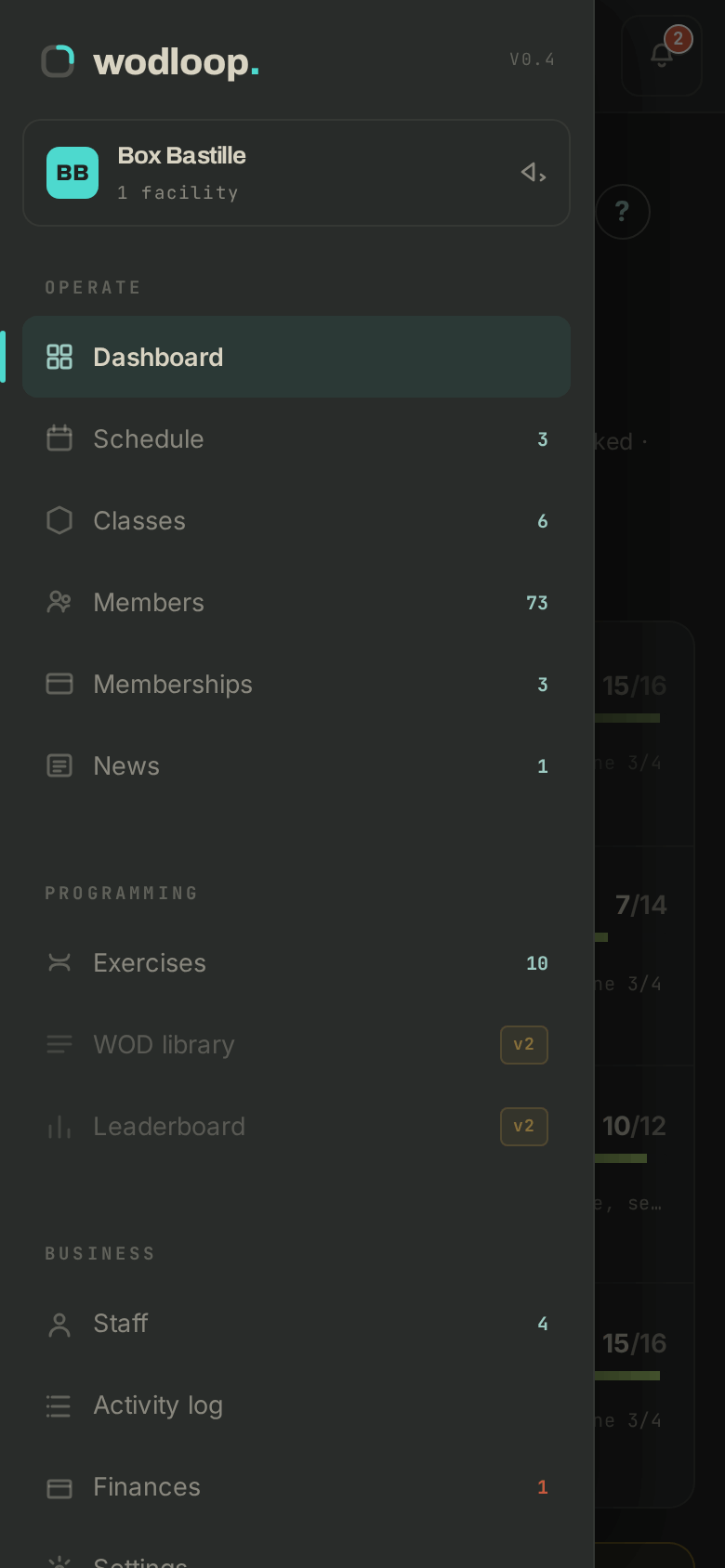
- At the top of the screen, a bar replaces the side menu. Tap the Menu button (three lines) to open the full menu.
- Tap the box name in the bar to open that same menu, where you switch facility.
- The bell, on the right, opens Notifications.
- The menu closes as soon as you pick a page, or when you tap beside it.
What changes on a small screen
- Dashboard: today's classes come first, with an AT RISK badge on those short of sign-ups.
- Schedule: one day at a time. Move between days with ‹ and ›, and jump back with Today.
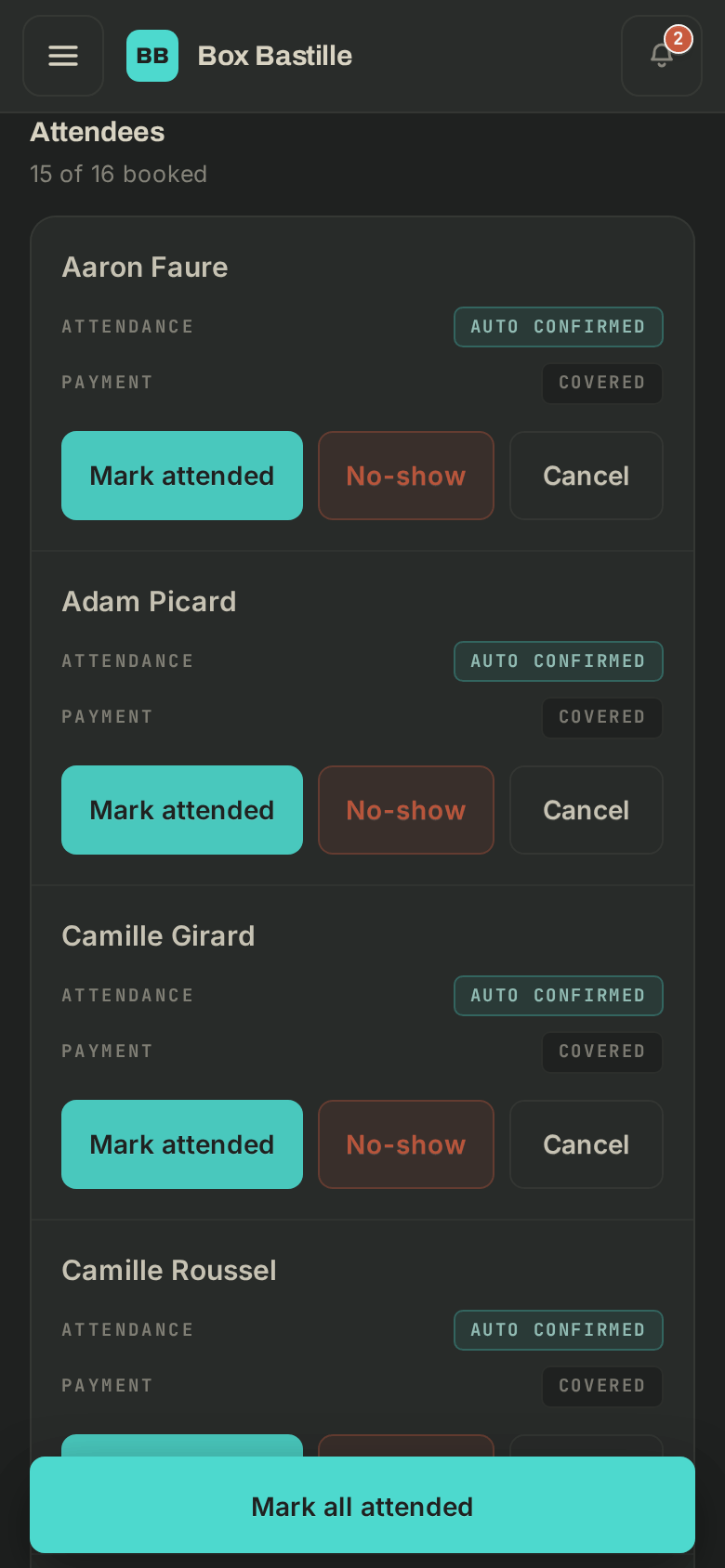
- Class roster: each member has Mark attended and No-show buttons, and Mark all attended stays at the bottom of the screen.
- Tables: some lists (members, roster, money to collect) turn into cards, one per row. Other tables scroll sideways.
- To collect: the Mark paid button spans the whole card.
- Pickers (dates, times, drop-downs): they open from the bottom of the screen.
- Dialogs: they go full screen, with the close button at the top.
If it goes wrong
- A page overflows or a button is out of reach: note the page and the phone model, and write to Wodloop support, support@wodloop.com.
- A page is missing from the menu: your access does not include it, ask the owner.
- For long jobs (the week's programming, full forms), a computer is still more comfortable.