Publish your box's terms
Upload your house rules as a PDF, have members accept them before they buy, and see who has.
Your terms are your own rules: life at the box, bookings, memberships, refunds. You upload them as a PDF, publish them, and your members accept them in the app before they buy anything. The text is yours: Wodloop does not check it.
Publish your terms
- Open Settings, Terms tab.
- Under Box terms, drop your file on Drop a new version (PDF only, 5 MB at most), then click Upload the PDF.
- The file is now a draft. Click Open ↗ to read it over. Nothing changes for your members until you publish.
- Click Publish version 1. The confirmation tells you how many members will have to accept it. Confirm with Publish.
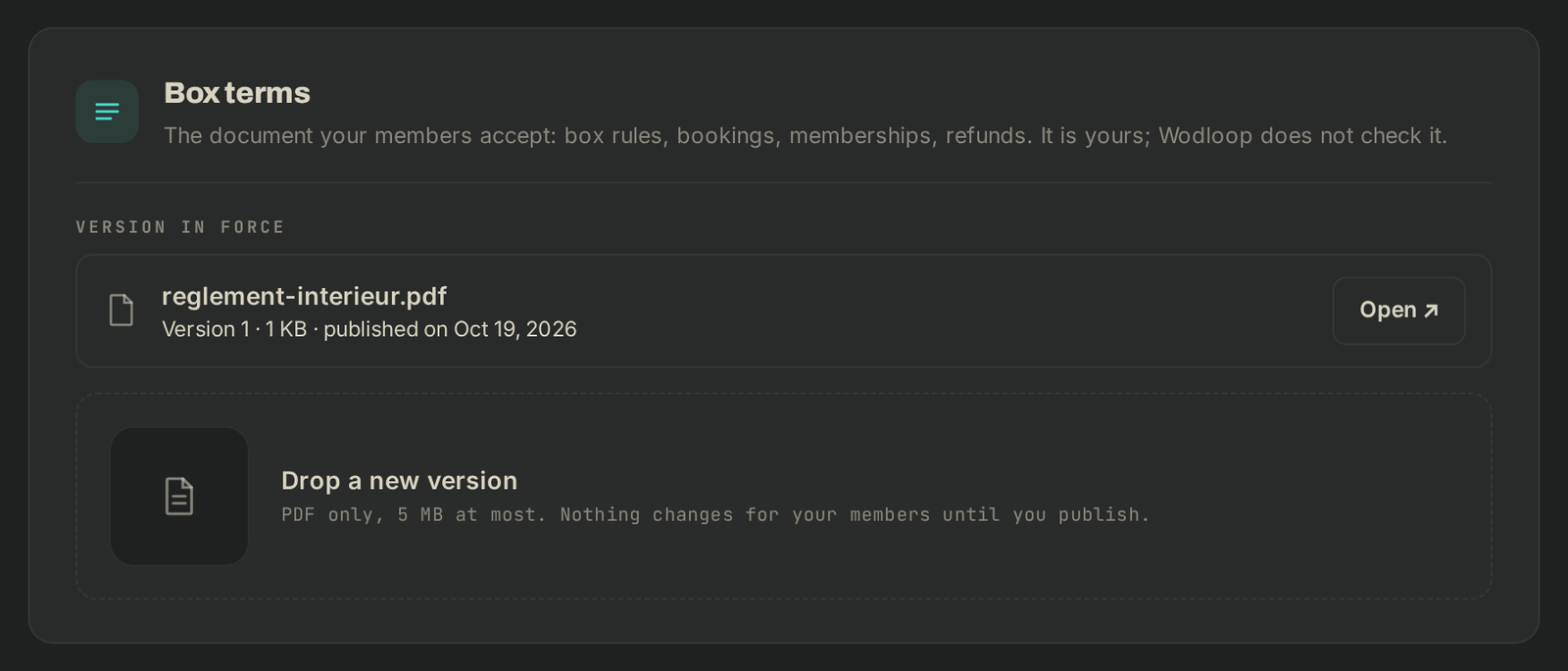
A published version is numbered, dated and frozen: its file can't be swapped afterwards.
What your members see
Once a version is out, a member has to accept it in the app before their next purchase: a membership, a pack, a plan change, or a pay-as-you-go class (a waitlist spot that would be paid included). Until they do, the server turns the purchase down.
Not affected: booking with a membership or pack they already hold, a free class, a trial, and anything you grant yourself from the back-office. Members find the terms they accepted in the app, under Profile › Documents.
Track who accepted
- At the top of the tab, a line such as "12 / 40 accepted v1" counts this facility's members. See the 28 others → opens the members list filtered on Terms to accept.
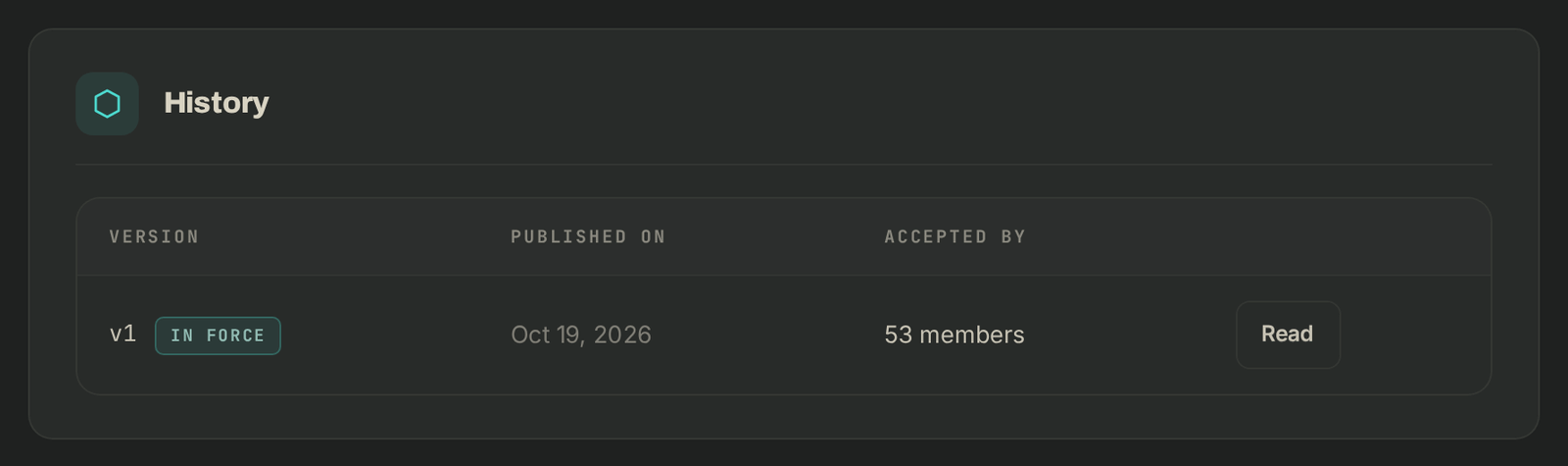
- History lists every version, its date (Published on) and how many members appear under Accepted by. Read opens the PDF.
- On a member's page, Profile tab, the Box terms card shows Never accepted or Version 2 accepted, with the date and how (in the app or on paper).

A member signed on paper
On their page, Profile tab, click Accepted on paper…, pick the day under Signed on, then Save. Only the version in force can be recorded. Keep the signed paper: it is what counts.
Publish a new version
- Drop the new PDF on Drop a new version, then Upload the PDF.
- Click Publish version 2, then Publish.
Members accept it at their next purchase. Those who accepted the previous version stay bound by it until then, and it remains readable in History.
If it goes wrong
- "This file isn't a PDF": export your document to PDF from your word processor. The file is checked by its content, not its name.
- "The PDF is too large (5 MB at most)": shrink the images or re-export at screen quality.
- Wrong draft: click Remove, then drop the right file.
- Anything else: write to Wodloop support, support@wodloop.com.