Create your classes and schedule
Create an activity and its recurring classes, then find them on the schedule.
A course is an activity (WOD, Weightlifting, Yoga…) and the time slots it runs at every week. Your members book those slots in the app.
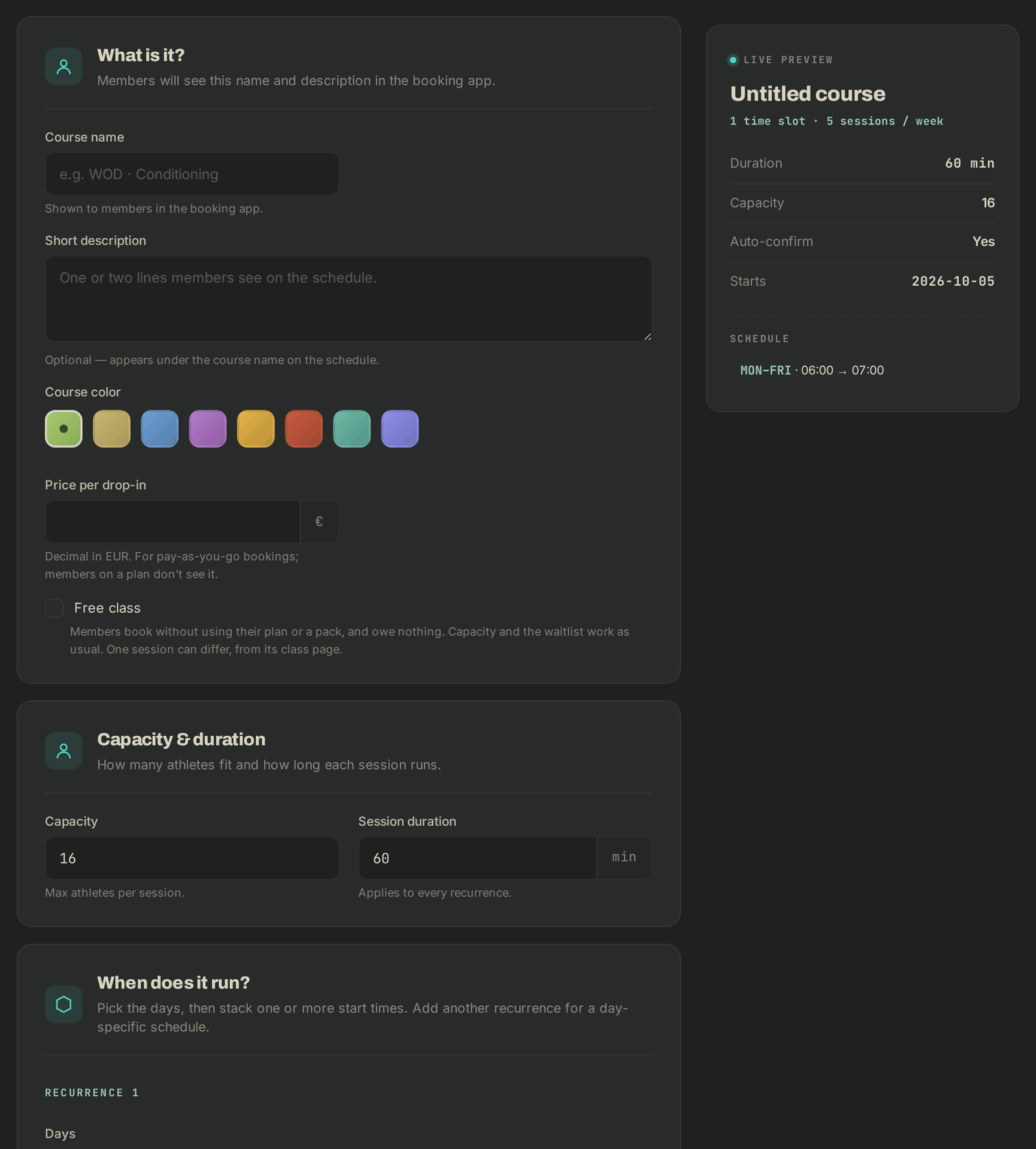
Create a course
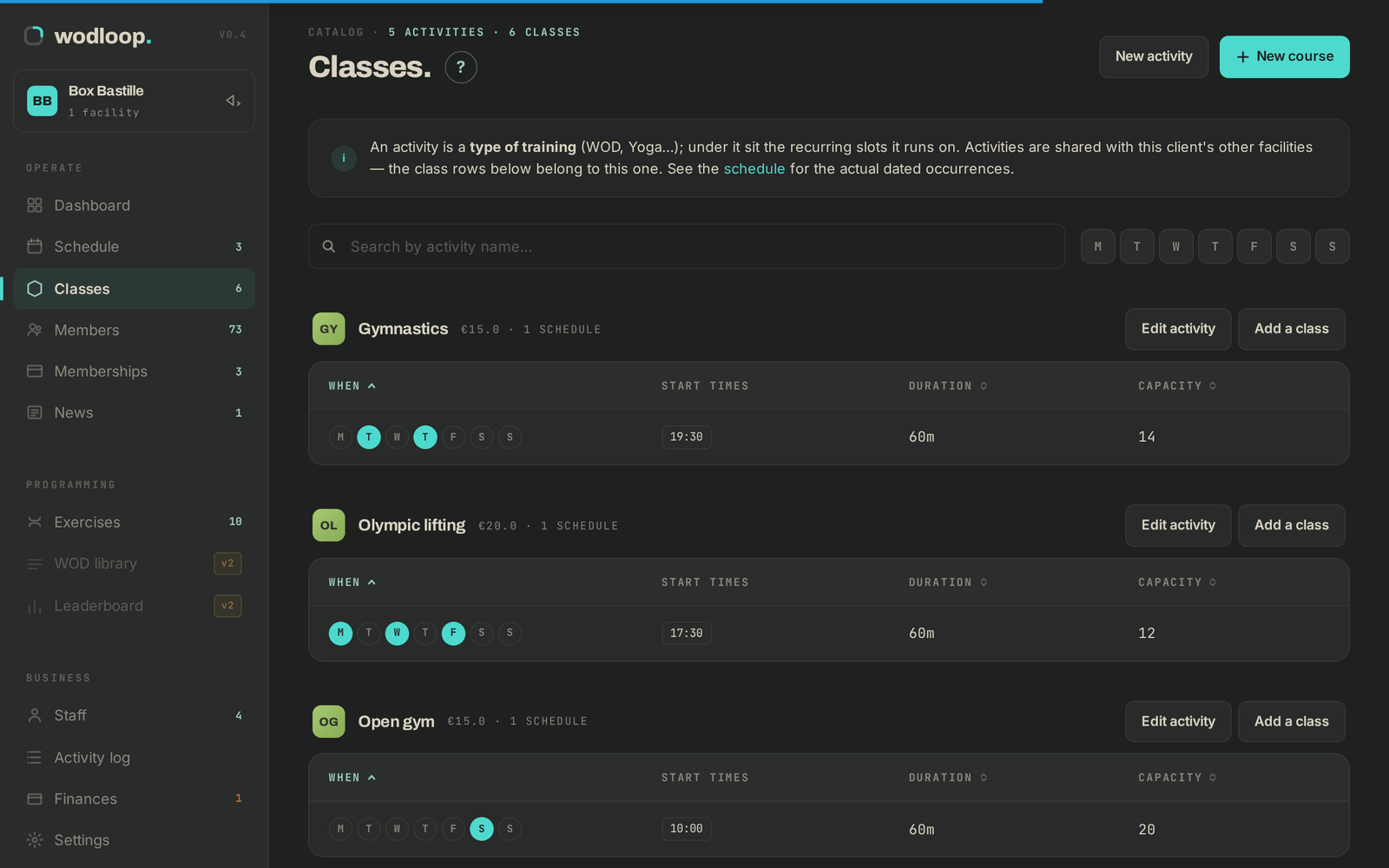
- In the sidebar, open Classes, then click New course.
- What is it?: enter a Course name, a Short description and a Course color. The Price per drop-in is for pay-as-you-go bookings. Tick Free class if nobody pays for it.
- Capacity & duration: the Capacity (athletes per session) and the Session duration.
- When does it run?: pick the Days, then the Start times. Add a start time stacks several times; Add another recurrence sets a different schedule for other days.
- If needed, adjust the Booking rules and Advanced settings (Effective from date, end date, Hidden from the public catalog…).
- Check the Live preview, then click Create course.
Add or edit classes
- On Classes, each activity has Add a class and Edit activity buttons. Click a row to change its days, times, seats and duration, then Save changes.
- If a lower capacity drops below the bookings already made, Wodloop asks you to Keep booked sessions or Cancel & refund affected.
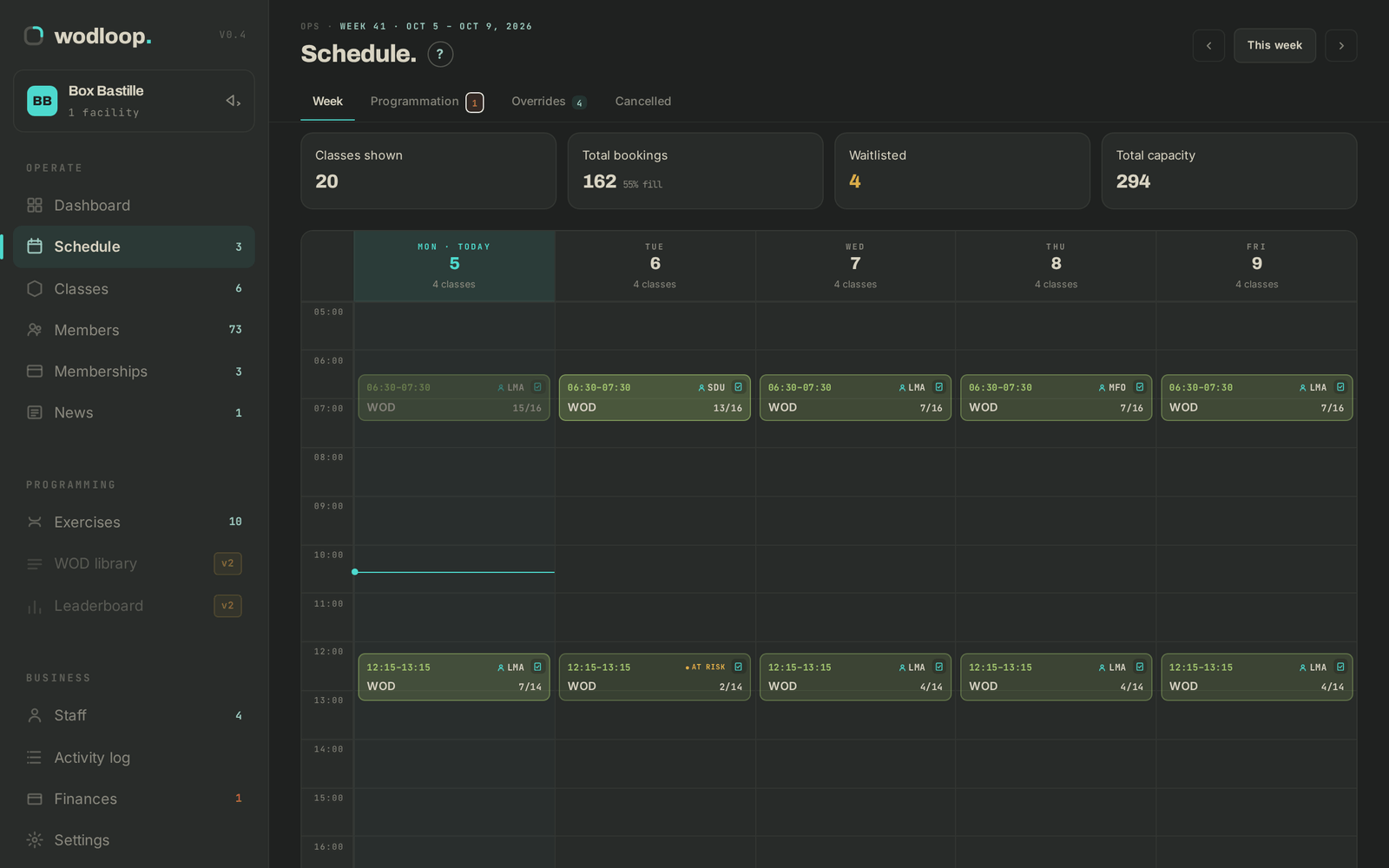
- On Schedule, you see the whole week. Click a class to open its roster.
If it goes wrong
- "VENUE ALREADY BOOKED": your times overlap another class. You can still save; both classes will run at the same time.
- A class doesn't show in the app: check the Effective from date and the Hidden from the public catalog option.
- To close a day or cancel a class, see Close a day or cancel a class.
- Anything else: support@wodloop.com.