Close a day or cancel a class
Cancel one or more of a day's classes, replace them, or undo it.
For a public holiday, an event or a coach who is away, you override that day: you cancel some or all of its classes, and you can add others, for that day only. Every other day keeps its usual schedule.
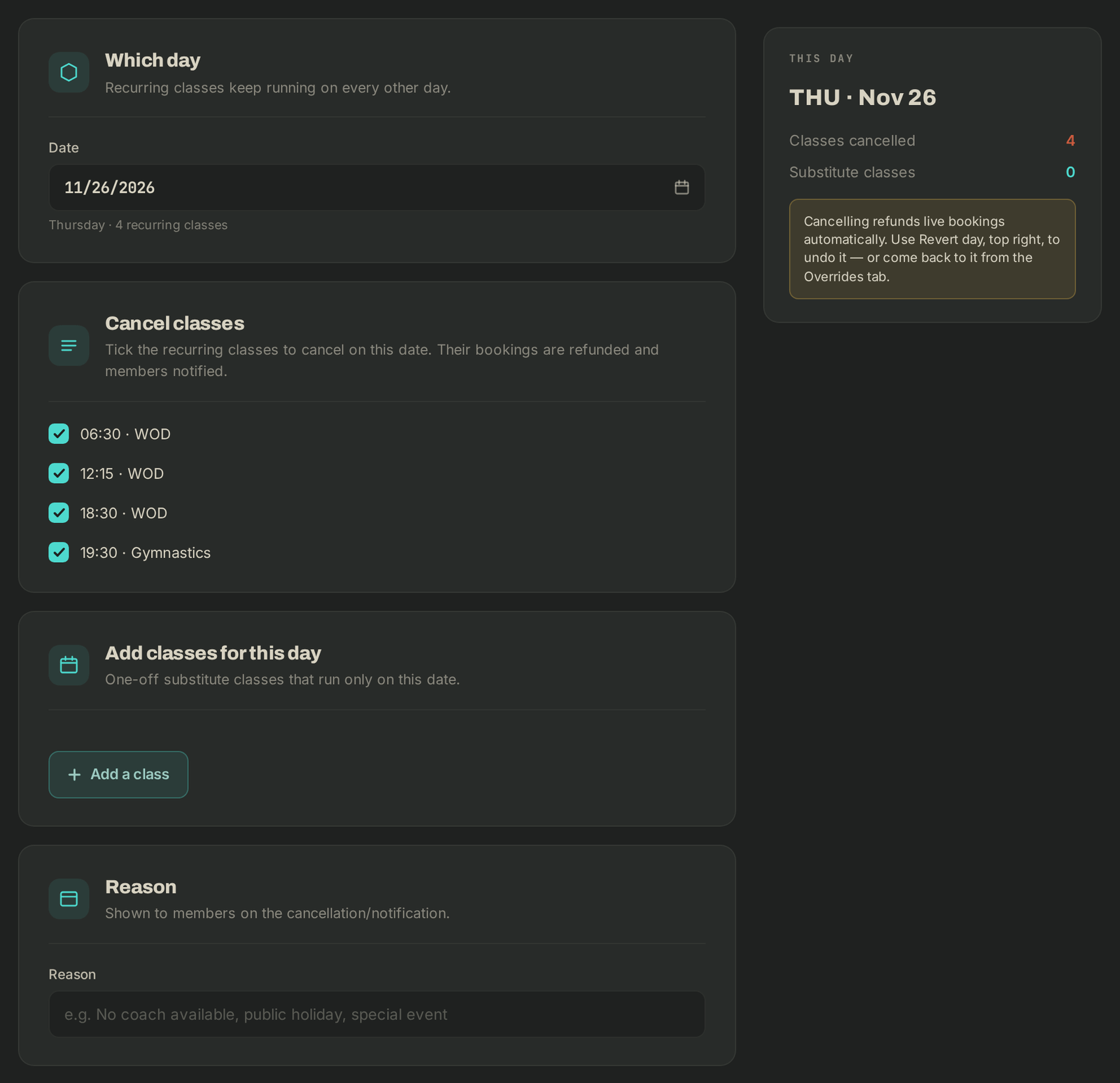
Cancel classes
- Open the override one of three ways: on Schedule, the Override day link at the top of the day's column; the Overrides tab, then Override a day; or, from a class, Override this day.
- Which day: check the Date.
- Cancel classes: every class of the day is ticked. Untick the ones that still run. To cancel a single class, leave only that one ticked.
- Add classes for this day (optional): Add a class, then pick the Activity, Start, Duration and Capacity.
- Reason: shown to members in the notification.
- Click Apply to day.
Bookings on the cancelled classes are refunded (pack credit goes back to the member) and members are notified.
Undo it
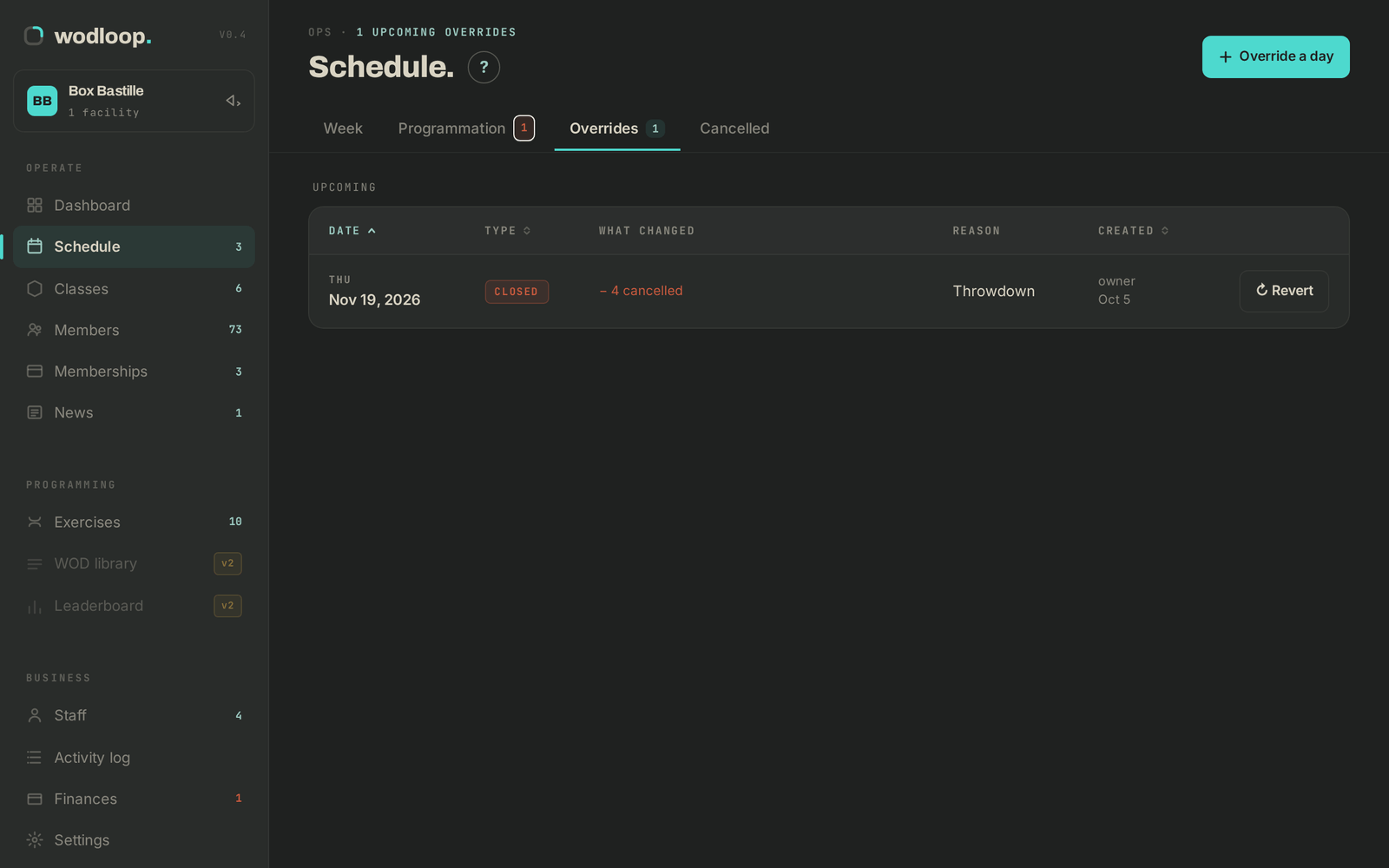
In the Overrides tab, click ↻ Revert on the day's row, choose whether to Notify members, then ↻ Revert day. The cancelled classes can be booked again; bookings already cancelled stay cancelled.
Automatic cancellations
The Cancelled tab lists classes cancelled for too few sign-ups, based on the minimum set in your settings (see key settings). To run one after all, click Open day override and untick it.
If it goes wrong
- The Overrides tab doesn't show: you need the permission to manage the timetable.
- A class to change every week: edit it under Classes instead (see Create your classes and schedule).
- Anything else: support@wodloop.com.