Manage coaches and their sessions
Invite a coach, set their availability, assign them to sessions and give them back-office access.
Coaches are managed from Staff. You then assign them session by session, one or several per session.
Add a coach
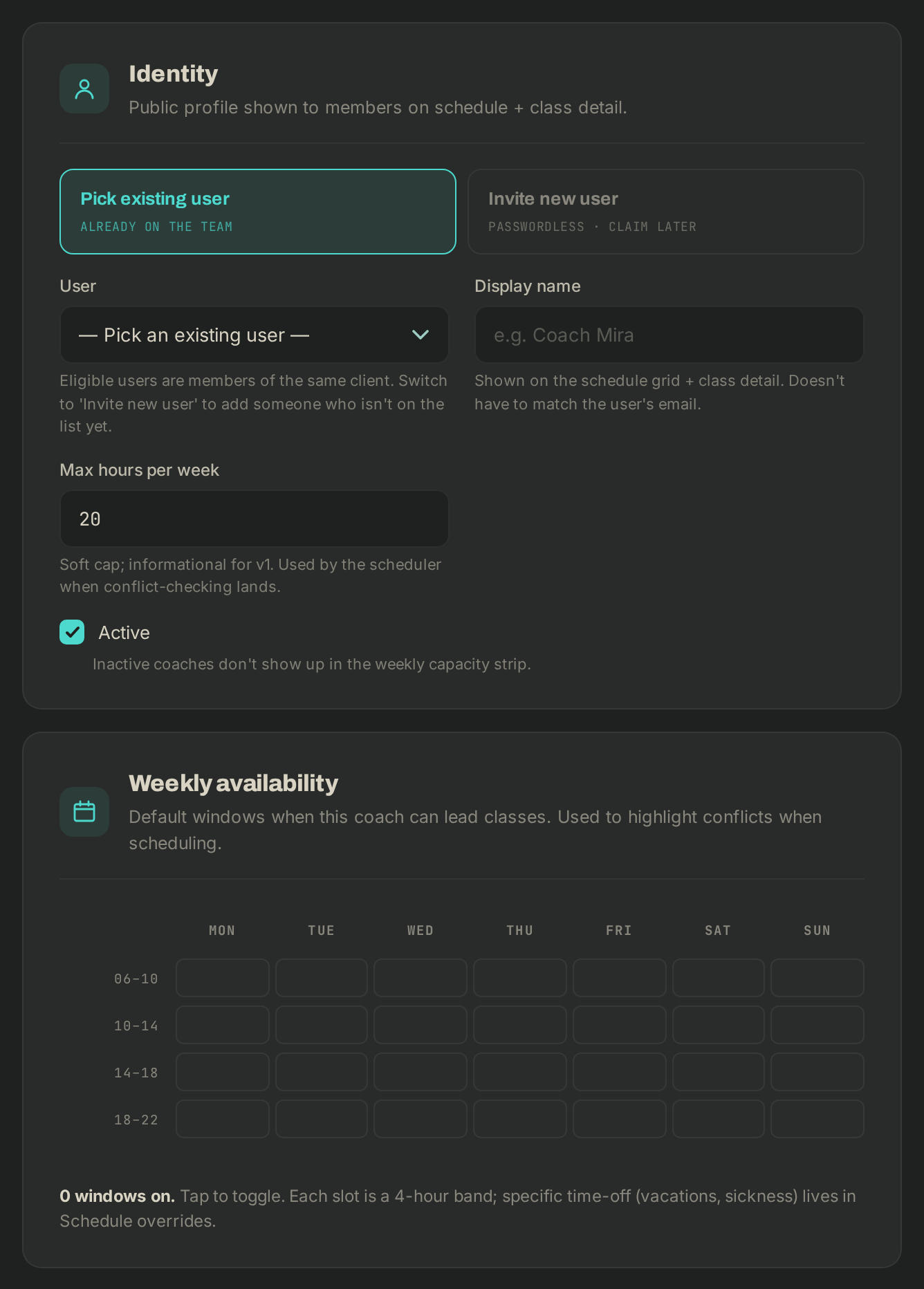
- Open Staff in the menu, then click Invite coach.
- Choose Pick existing user (someone already attached to the box) or Invite new user and enter their Email. If they have no password yet, they get an email to set one, with a link good for 7 days.
- Fill in the Display name (shown on the schedule), and if needed the Max hours per week.
- Under Weekly availability, tap the slots when the coach can lead classes (4-hour bands).
- Click Save coach.
Resend a coach's invitation
Until the coach has picked a password, their page shows, under their email, a NOT ACTIVATED chip and where the invitation stands: Invitation sent on … · expires … or Invitation expired (sent on …).
- Open Staff, then the coach's page.
- Click Resend invitation (Send invitation if none is out). The coach gets a fresh link and the previous one no longer works.
One email per person every ten minutes: sooner than that, you see "An invitation was just sent. Try again in … minutes."
Assign a coach to a session
- Open the session from the Schedule.
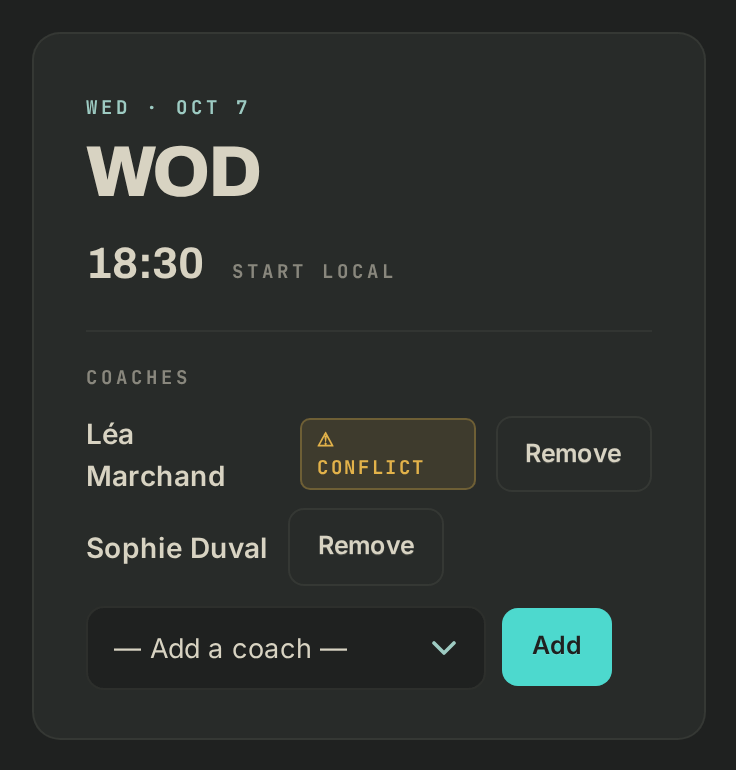
- Under COACHES, pick a coach in — Add a coach —, then click Add. Remove takes them off the session.
- If the coach is outside their availability or already on another session at the same time, a ⚠ CONFLICT badge shows. It is a warning: the assignment is saved anyway.
The coach's page lists their Coached sessions and flags those OUTSIDE AVAILABILITY.
Give a coach back-office access
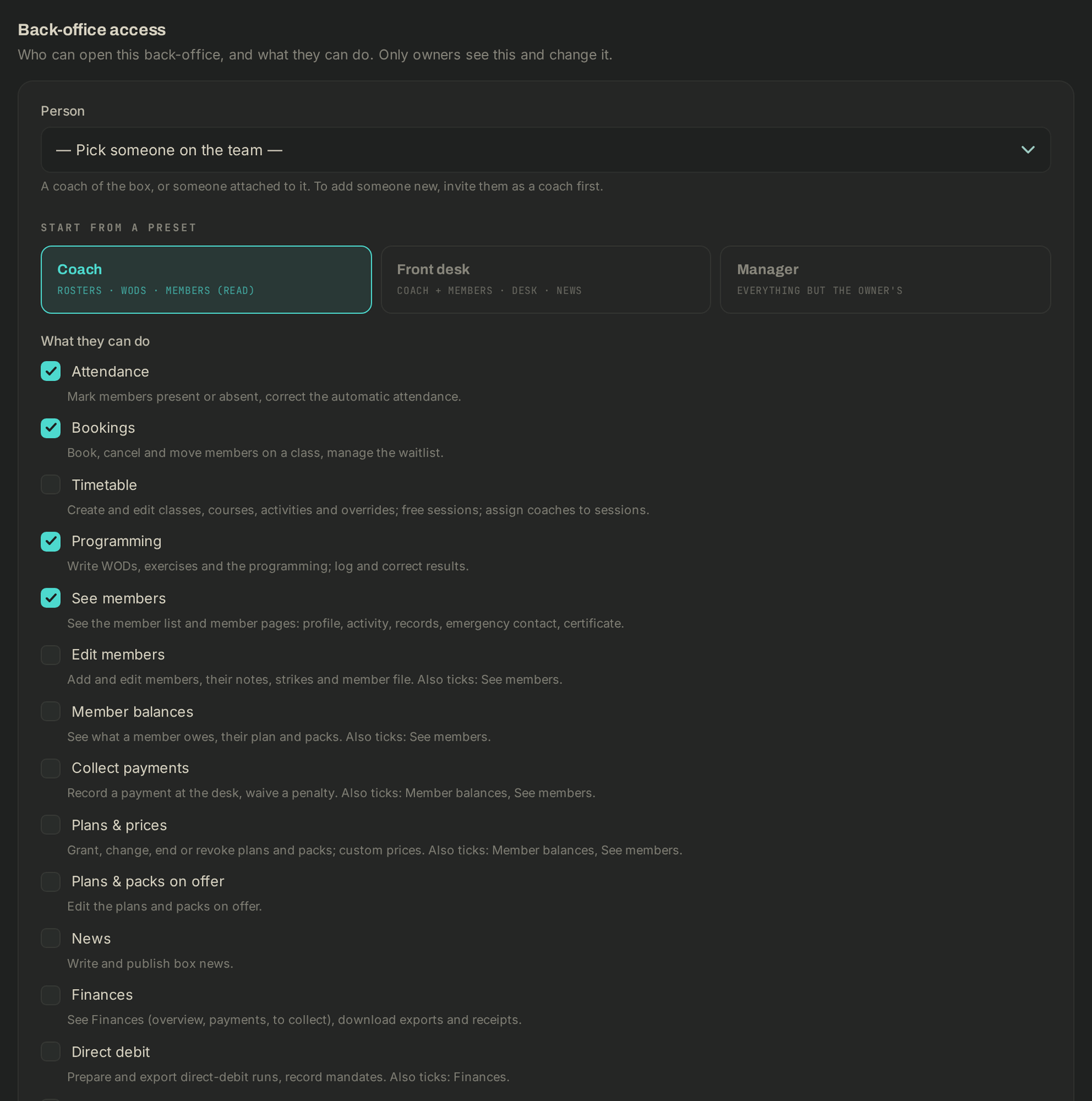
Owners only, in the Back-office access section of the Staff page:
- Click Give access and pick the Person.
- Under START FROM A PRESET, pick Coach, Front desk or Manager, then adjust What they can do.
- Under At these facilities, tick the boxes it applies to, then Save access.
The person gets an email "You now have access to [your box]'s back-office", naming the facilities. If they already have a password, it holds a sign-in link; if not, a link to choose one that takes them straight into the back-office. Adding a facility to their access sends it again. Changing only What they can do sends nothing.
Remove access takes it away in one click, without an email. Removing or deactivating a coach also removes their access to that facility.
A coach who signs in before you have given access sees No back-office access yet., which tells them to ask you.
If it goes wrong
- That person already coaches at this facility.: they are already in the list, edit their page instead.
- The person is missing from Give access: add them as a coach first.
- The coach never got their email, or the link has expired: check the address on their page, then Resend invitation.
- Anything else: write to Wodloop support, support@wodloop.com.