Collect what's owed
See what your members owe and collect it, at the desk, by SEPA direct debit or by card with Stripe.
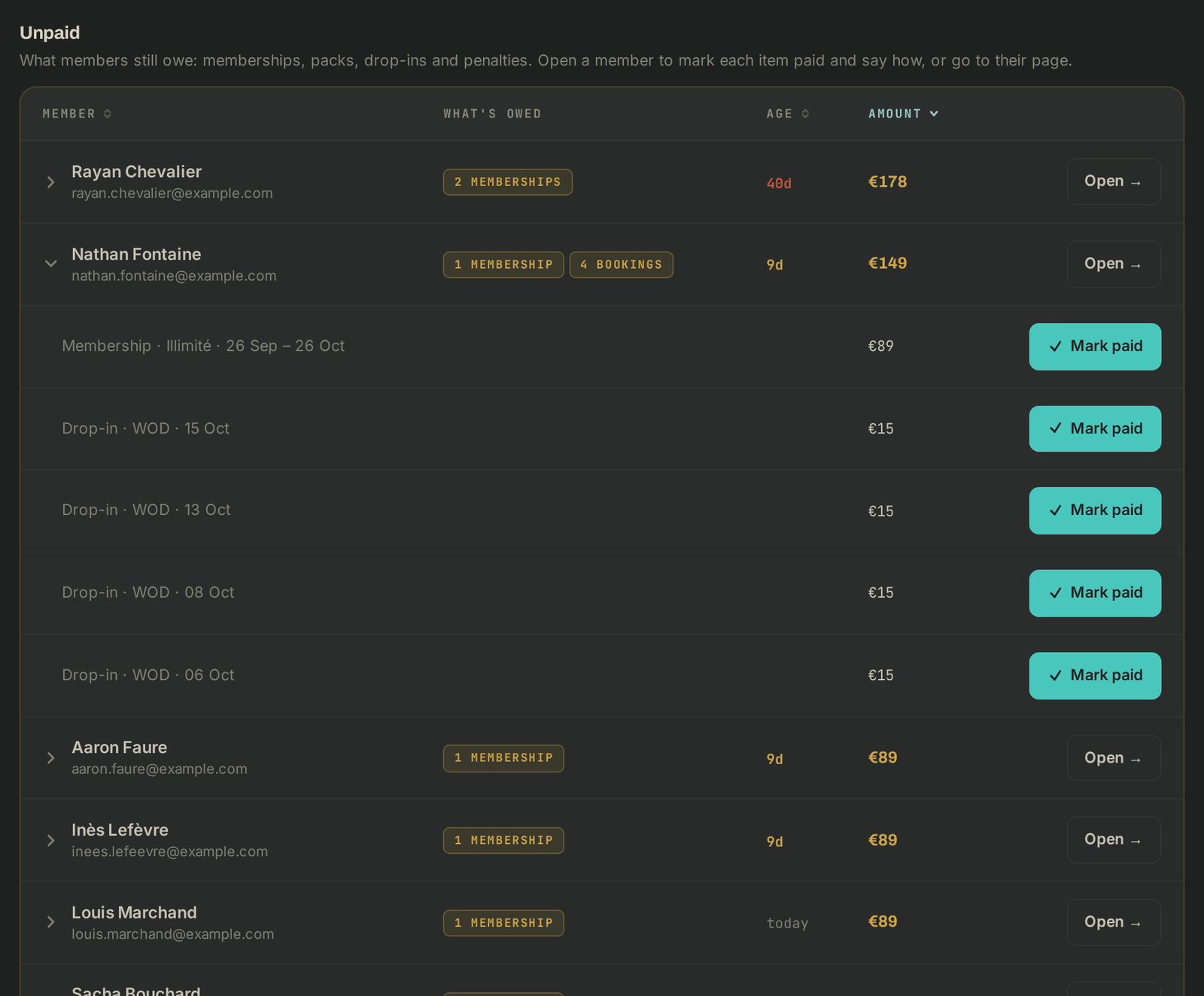
Everything owed is under Finances. The Overview tab lists what Needs attention, To collect shows who owes what, Payments keeps track of everything paid.
Collect at the desk
- Open Finances, To collect tab (or the Finances tab of the member's page).
- On the owed line, click Mark paid.
- Pick how it was paid: Cash, Card terminal, Bank transfer or Cheque.
SEPA direct debit through your bank
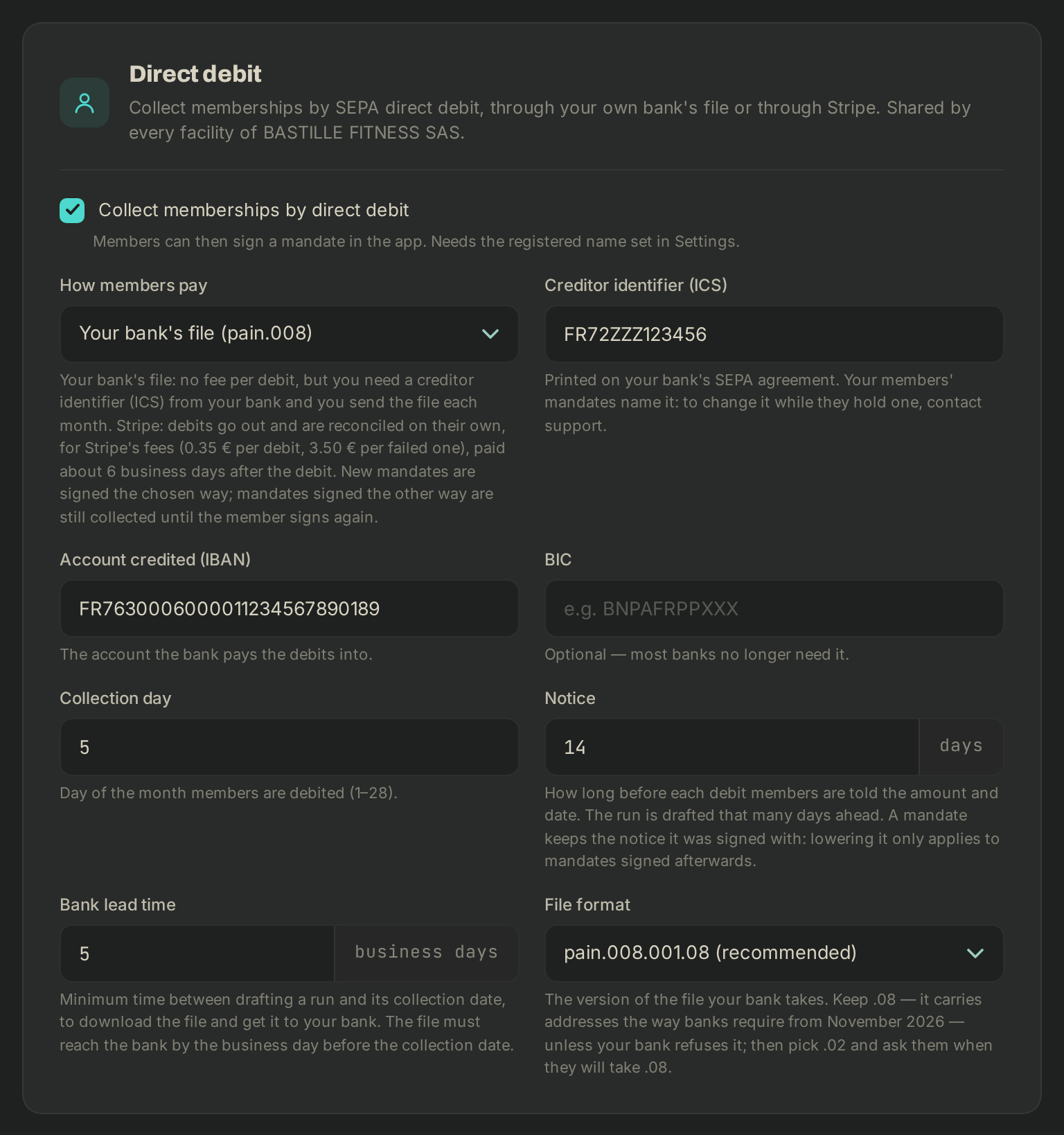
- In Settings, Business tab, Direct debit section: tick Collect memberships by direct debit, pick Your bank's file (pain.008) under How members pay, then fill in the Creditor identifier (ICS), the Account credited (IBAN) and the Collection day. Save.
- Your members sign their mandate in the app. For a paper mandate, open the member's page, Finances tab, then Record a paper mandate.
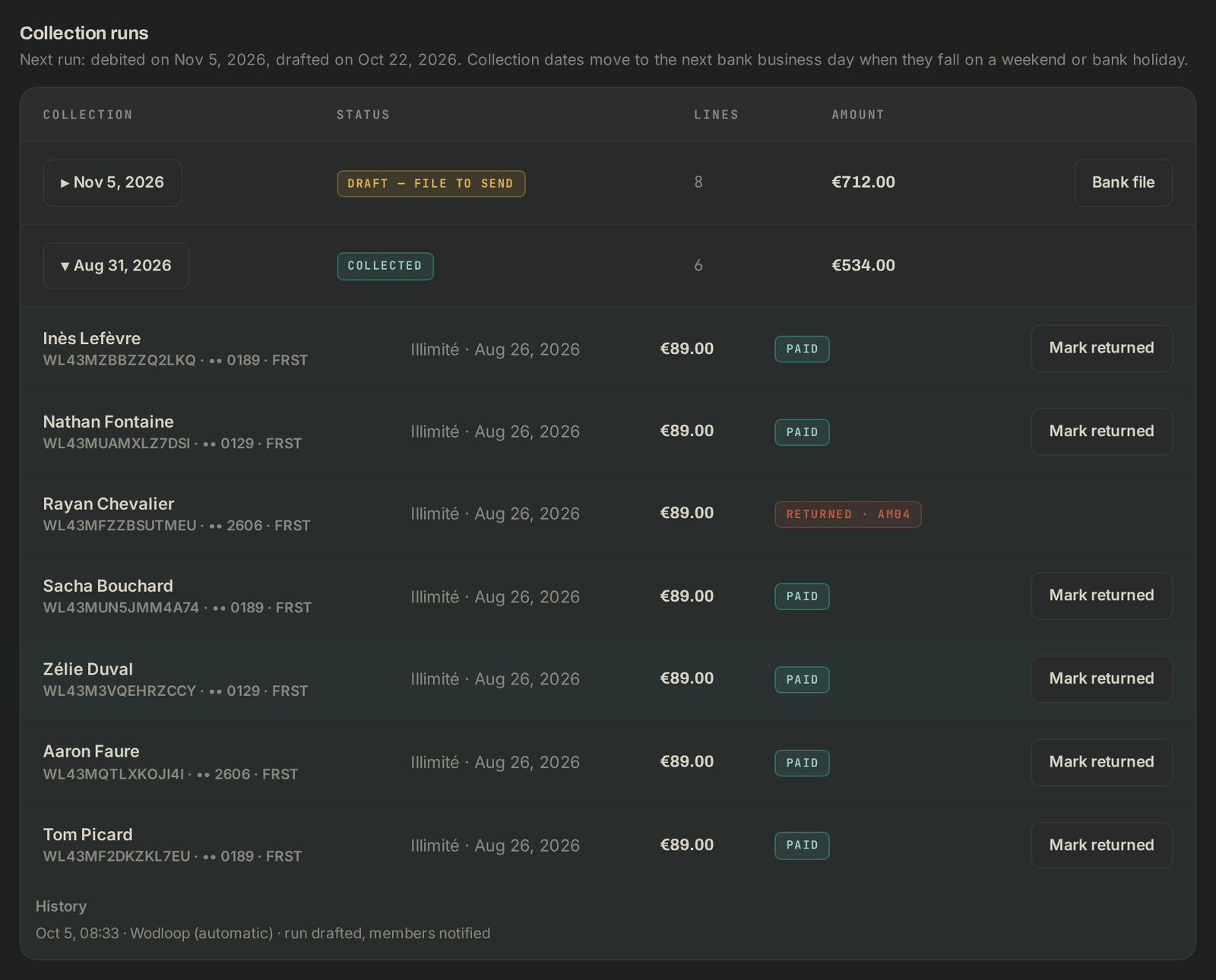
- Ahead of each collection day, a run is drafted automatically and members get their notice. You can also click Draft next run under Finances, Direct debit tab.
- Download the Bank file and upload it to your bank's website by the date in the notification: your bank needs it a few business days before the collection date (the Bank lead time in your settings, 5 by default). Sent later, the bank refuses it or moves the date. If it isn't sent two business days before that deadline, it shows under Needs attention and you get a reminder.
- Once your bank shows the money (usually a day or two after the collection date), click Mark collected: until then those members still show as unpaid. A debit the bank sends back is recorded with Mark returned and its reason. A run past its date and not marked collected shows under Needs attention, and you get a reminder each week.
Card payments with Stripe
The owner connects their Stripe account in Settings, Business tab, Online payments section: Connect Stripe. When the status reads Online payments active, your members pay plans and packs by card in the app, straight into your Stripe account. Direct debit can also go through Stripe: pick Stripe under How members pay.
If it goes wrong
- Only the owner can open the Business tab and connect Stripe.
- Verification pending: Stripe is checking your details; click Refresh status later.
- Your bank refuses the whole file: click The bank rejected this file. The run goes back to draft with a new reference; fix the problem, then download and send the file again.
- Anything else: support@wodloop.com.