Connect your figures to a dashboard
Make an API key to read your box's figures in Google Sheets, a BI tool or your own dashboard.
An API key lets a spreadsheet or a dashboard read the figures of your back-office: members, bookings, fill, money in, unpaid, trials. The key only reads. It cannot change anything or see your member list.
Make a key
- Open Settings, API tab. Only the owner sees this tab.
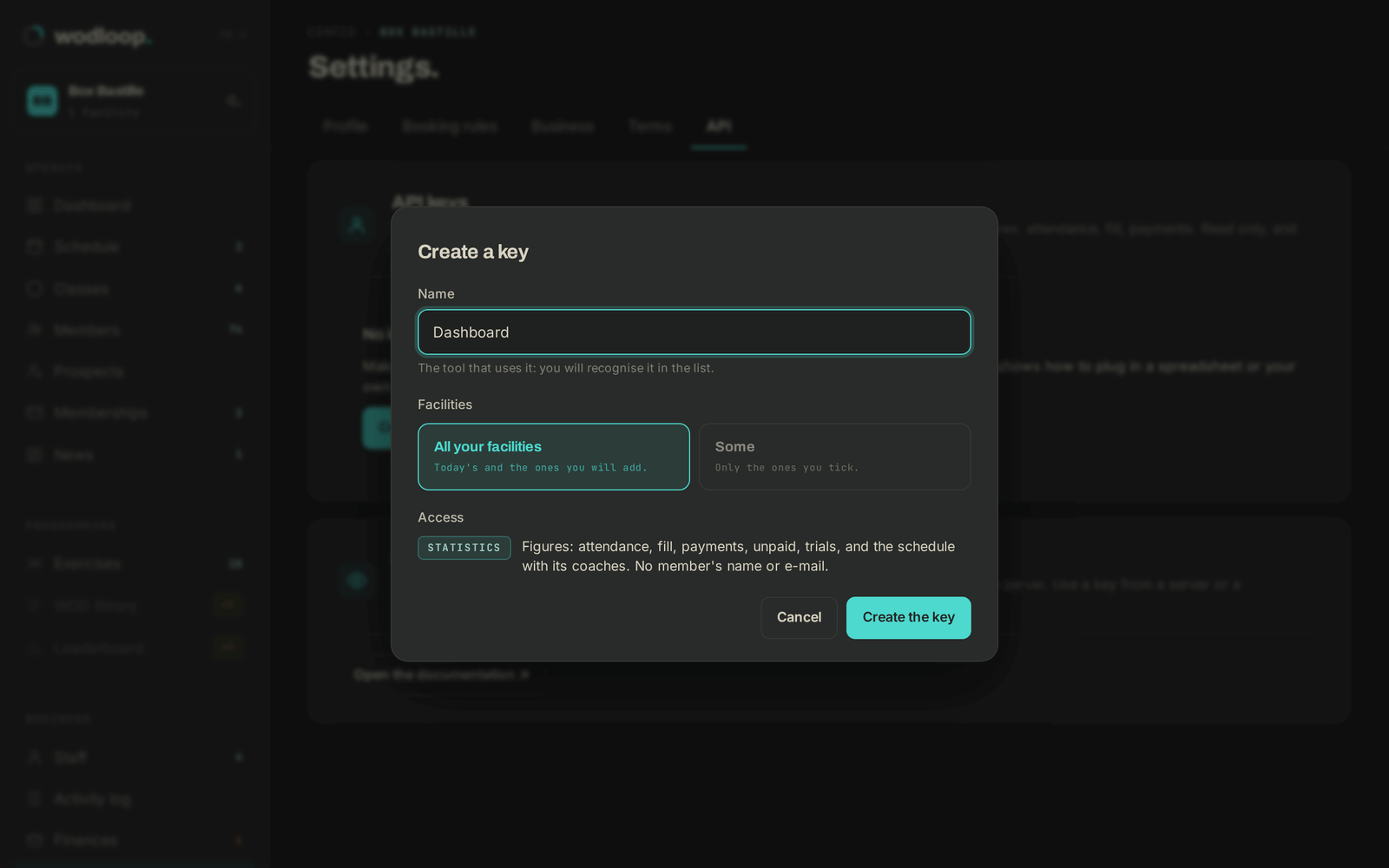
- Click Create a key.
- In Name, write the tool that will use it, for example "Accounts sheet".
- Choose All your facilities, or Some and tick the ones it reads.
- Click Create the key.
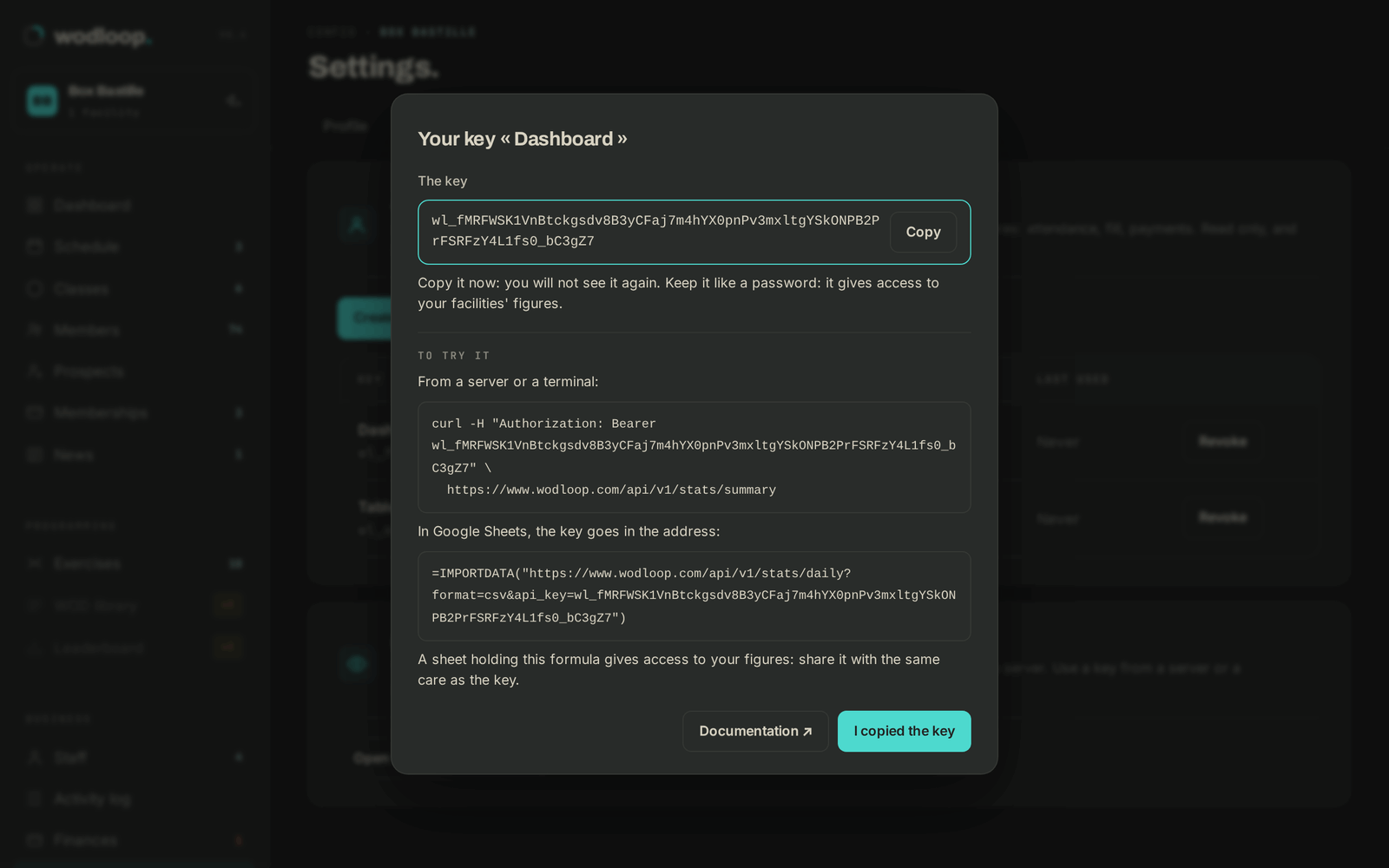
- Click Copy, then I copied the key. The key starts with
wl_and is shown only once.
In Google Sheets
In an empty cell, paste the formula below, with your key in place of wl_…:
=IMPORTDATA("https://www.wodloop.com/api/v1/stats/daily?format=csv&api_key=wl_…")
The sheet shows one line per day of the last 30 days: classes, seats, seats booked, waiting list and fill. For another period, add &from=2026-09-01&to=2026-09-30 to the address.
Anyone who opens the sheet can read the key in the formula. Share the sheet as you would share the key.
With a BI tool or your developer
Give them the key and the documentation's address, wodloop.com/en/api. They will find the list of figures, examples and the OpenAPI document there.
Revoke a key
In Settings, API tab, click Revoke next to the key, then Revoke the key. It stops working at once, and the sheets that use it show nothing more.
The Last used column shows when each key was used. A key unused for 90 days is marked Unused for 90 days: if no tool uses it any more, revoke it.
If it does not work
- "Missing or invalid API key.": the key was copied wrong or has been revoked.
- "Too many calls": a key makes 60 calls a minute at most. Wait a minute.
- Anything else: write to Wodloop support, support@wodloop.com.