Offer free trials and drop-ins
Let beginners book a free trial and visitors pay for a drop-in, from a link on your website.
A beginner books their free trial, a visitor from another box books and pays for one class: all from a link on your website, with no account and no app. It is all set in Settings, on the Booking rules tab.
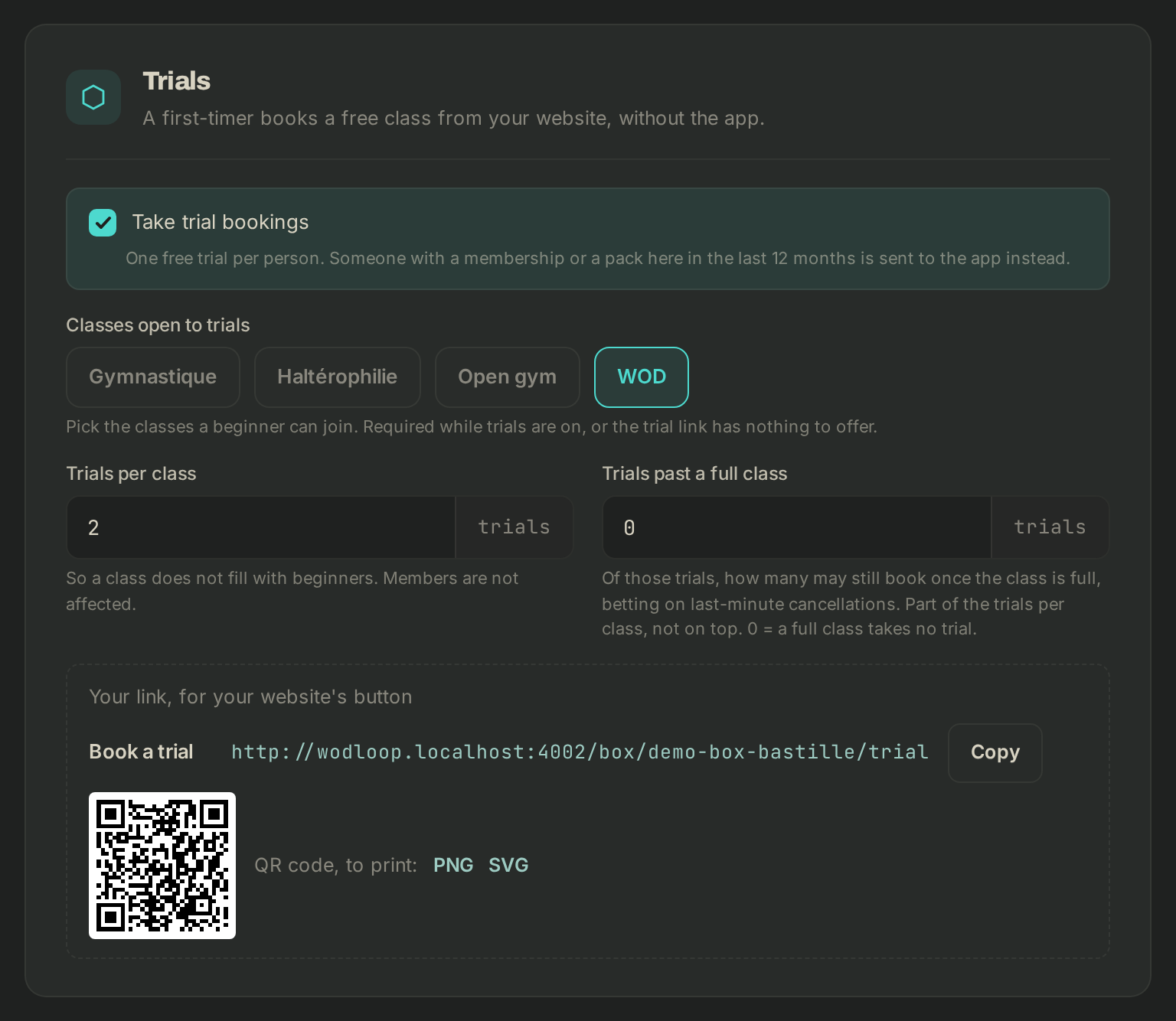
Turn trials on
- Under Trials, tick Take trial bookings. It's one free trial per person: anyone who had a membership or a pack with you in the last 12 months is sent to the app instead.
- Under Classes open to trials, pick the classes a beginner can join. You need at least one while trials are on.
- Trials per class: the most trials one class takes, so it doesn't fill up with beginners. Your members aren't affected.
- Trials past a full class: how many of those trials can still book once the class is full, counting on last-minute cancellations. They come out of the trials per class, not on top. 0 = a full class takes no trial.
- Book at least (h ahead): a trial can't book a class starting sooner, so the coach knows a beginner is coming. 0 = up to 15 minutes before the start.
- Practical info: access, parking, what to bring. It goes in the confirmation and in the reminder the day before, to trial and drop-in visitors alike.
- Mails after a trial: see below.
Turn drop-ins on
- Under Drop-ins, tick Take drop-in bookings.
- Classes open to drop-ins: every class by default; untick the ones you don't want to offer.
- Optional, Review link: your Google review page, offered to visitors who rated their class 4 or 5.
- Book at least (h ahead): the same, for drop-ins. A visitor who already trains often books late; 0 keeps the class open until 15 minutes before the start.
- Mail after a drop-in: see below. The practical info is the one set under Trials.
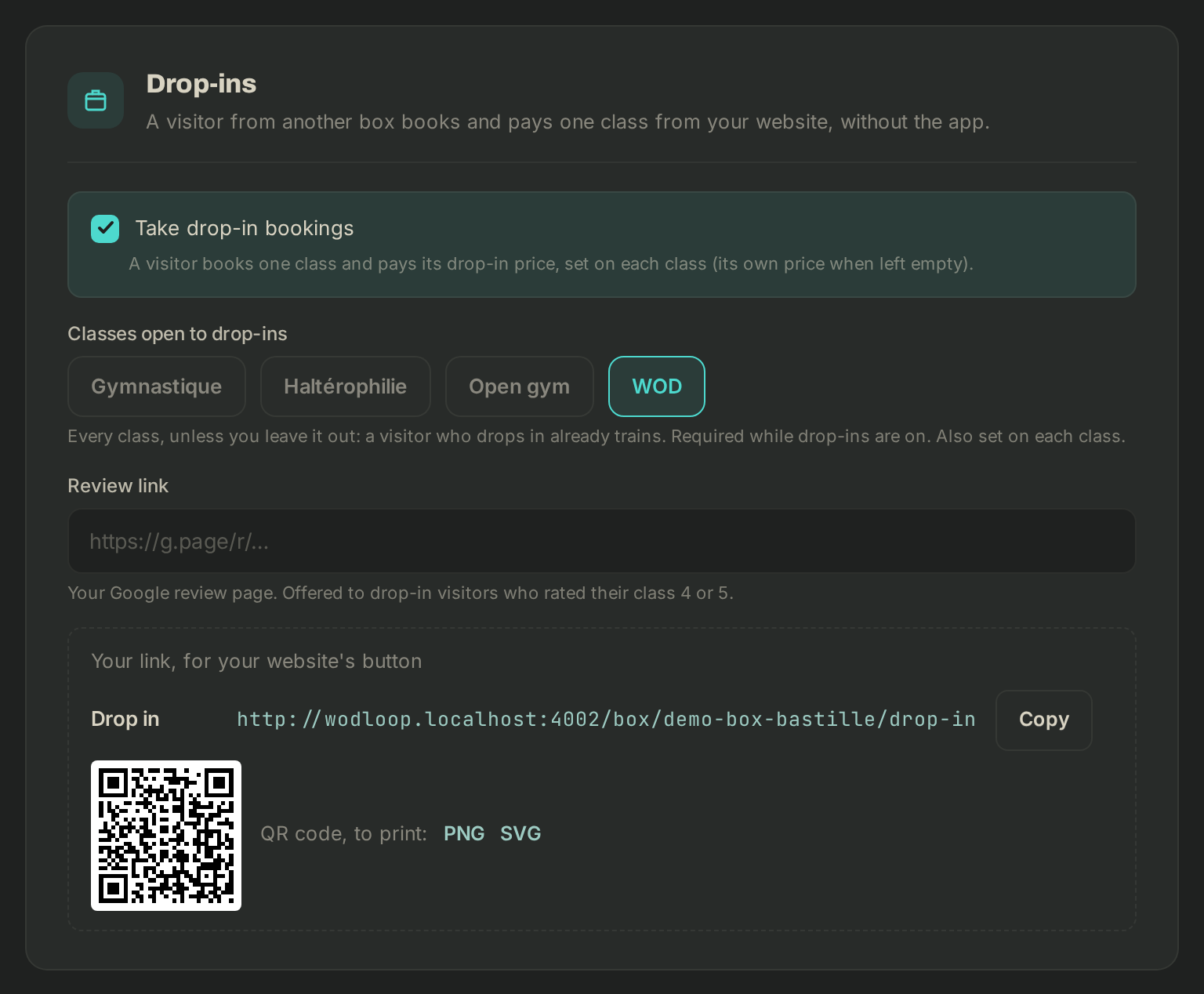
The visitor pays the class's drop-in price. To set it, open Classes, click Edit activity, then fill in Drop-in price for visitors under Trials and drop-ins (where you can also tick Open to trials and Open to drop-ins). Left empty, it's the price per session; your members keep paying the price per session.
Before you save
Visitors reply to your contact email, so neither offer turns on without one. Add it on the Profile tab, under Contact, in the Email field.
Click Save changes. A link only takes bookings once saved.
If you have published your conditions (Settings, Terms tab), visitors accept them on the form. The tutorial Publish your box's terms suggests a clause on fitness to train to add to them.
Put the link on your website
At the bottom of each section, Your link, for your website's button shows the address (…/box/your-box/trial for Book a trial, …/box/your-box/drop-in for Drop in). Copy copies it; QR code, to print: gives you the QR code as PNG or SVG, for a poster or a flyer.
The visitor opens your box's page in any browser, on a computer or a phone, in their own language. They pick a class over the next two weeks and enter their details; they can agree to hear from you by email and by phone. They then get an email to confirm their booking: their spot is held for an hour, and released if they don't click. Once confirmed, you're notified, and a drop-in paid by card goes on to payment.
Mails after the class
The coach marks whether the visitor came: trials and drop-ins are never marked automatically (see Take attendance). Then, from your box:
- came to their trial: that evening, "how was it?" with a 1 to 5 rating. If they agreed to your offers by email, it also invites them to join the box in the app, and two reminders follow. Without that consent, they only get the rating;
- missed it: a neutral "we missed you";
- drop-in: a thank-you and a rating.
Nothing more goes out once they take a membership or a pack, or if they unsubscribe. To switch them off, untick Mails after a trial or Mail after a drop-in: each offer has its own. See the mails, under each, opens every one as your visitors get it, with your box's name.
If it goes wrong
- "Visitors reply to your contact email, and you have none yet.": click Add one in Profile →.
- "Off: this link takes no bookings.": tick the offer, then save.
- The page shows no class: check the classes open to the offer and its Book at least setting.
- Anything else: write to Wodloop support, support@wodloop.com.