Offer free trials and drop-ins
Let beginners book a free trial and visitors pay for a drop-in, from a link on your website.
A beginner books their free trial, a visitor from another box books and pays for one class: all from a link on your website, with no account and no app. It is all set in Settings, on the Booking rules tab.
Turn trials on
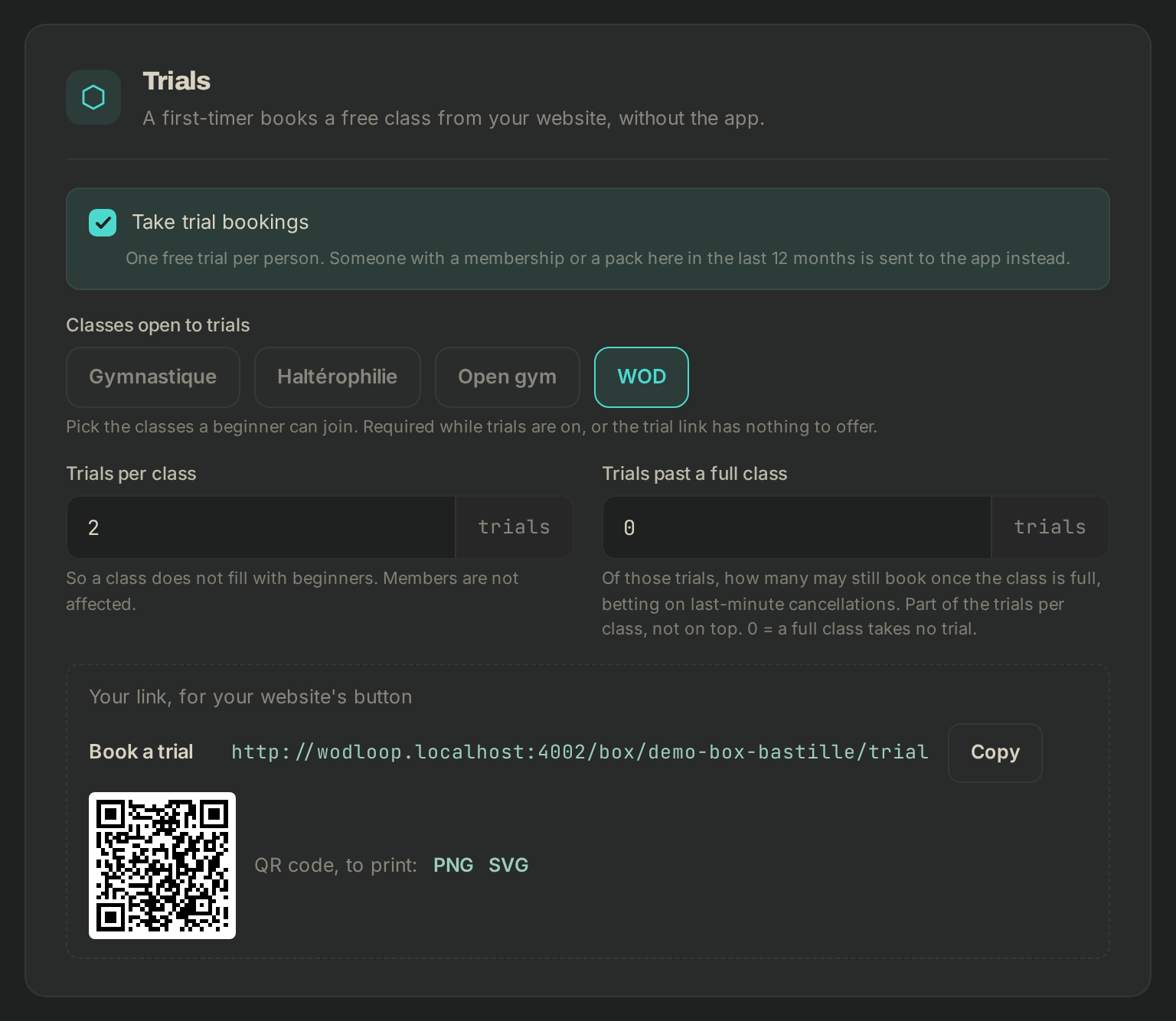
- Under Trials, tick Take trial bookings. It's one free trial per person: anyone who had a membership or a pack with you in the last 12 months is sent to the app instead.
- Under Classes open to trials, pick the classes a beginner can join. You need at least one while trials are on.
- Trials per class: the most trials one class takes, so it doesn't fill up with beginners. Your members aren't affected.
- Trials past a full class: how many of those trials can still book once the class is full, counting on last-minute cancellations. They come out of the trials per class, not on top. 0 = a full class takes no trial.
Turn drop-ins on
- Under Drop-ins, tick Take drop-in bookings.
- Classes open to drop-ins: every class by default; untick the ones you don't want to offer.
- Optional, Review link: your Google review page, offered to visitors who rated their class 4 or 5.
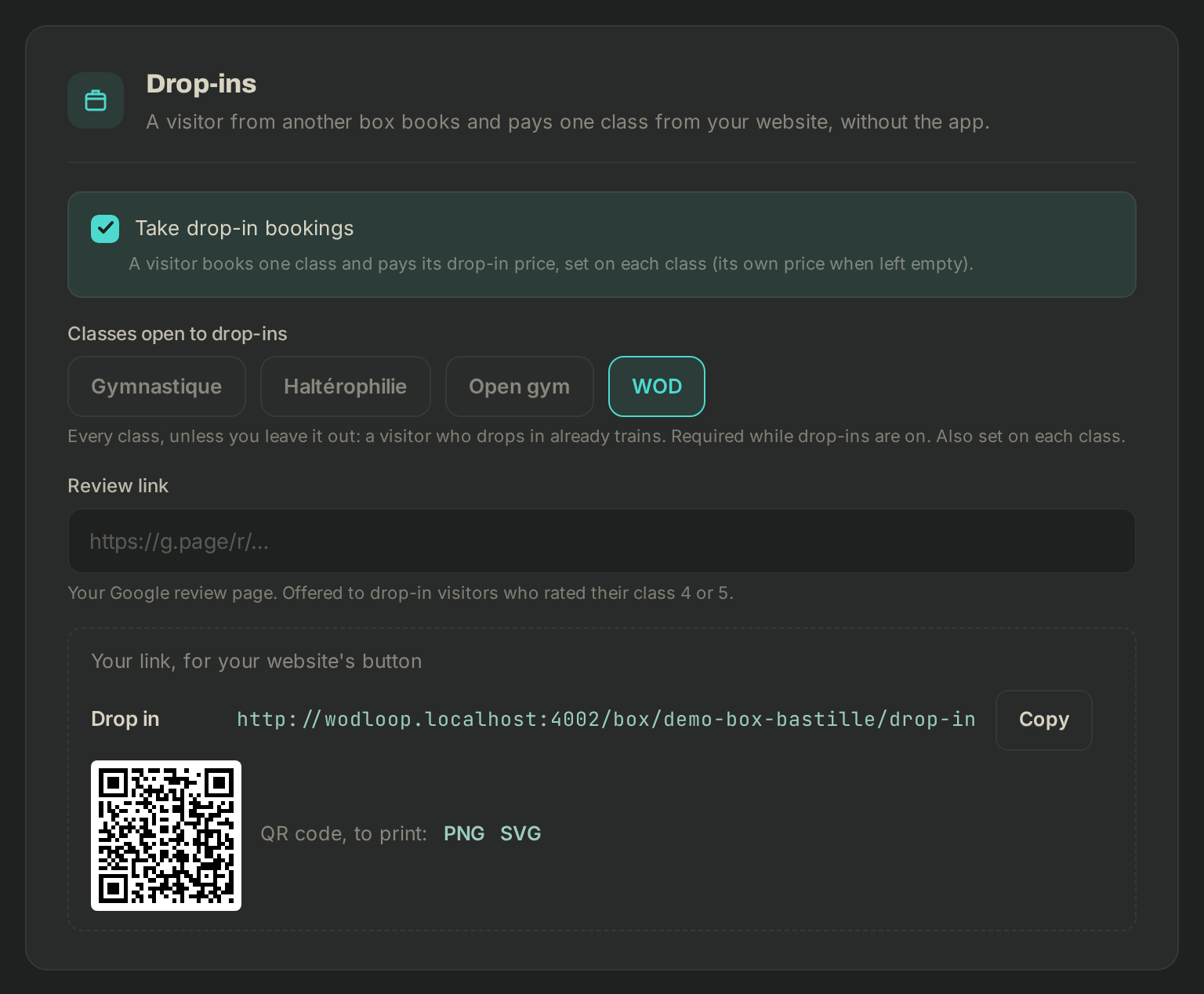
The visitor pays the class's drop-in price. To set it, open Classes, click Edit activity, then fill in Drop-in price for visitors under Trials and drop-ins (where you can also tick Open to trials and Open to drop-ins). Left empty, it's the price per session; your members keep paying the price per session.
Shared settings
Under Trials and drop-ins:
- Book at least (h ahead): a class starting sooner can no longer be booked, so the coach knows who's coming. 0 = up to 15 minutes before the start.
- Practical info: access, parking, what to bring. It goes in the confirmation and in the reminder the day before.
- Mails after the class: see below.
Visitors reply to your contact email, so neither offer turns on without one. Add it on the Profile tab, under Contact, in the Email field.
Click Save changes. A link only takes bookings once saved.
Put the link on your website
At the bottom of each section, Your link, for your website's button shows the address (…/box/your-box/trial for Book a trial, …/box/your-box/drop-in for Drop in). Copy copies it; QR code, to print: gives you the QR code as PNG or SVG, for a poster or a flyer.
The visitor opens your box's page in any browser, on a computer or a phone, in their own language. They pick a class over the next two weeks and enter their details; they can agree to hear from you by email and by phone. They then get an email to confirm their booking: their spot is held for an hour, and released if they don't click. Once confirmed, you're notified, and a drop-in paid by card goes on to payment.
Mails after the class
The coach marks whether the visitor came: trials and drop-ins are never marked automatically (see Take attendance). Then, from your box:
- came to their trial: that evening, "how was it?" with a 1 to 5 rating. If they agreed to your offers by email, it also invites them to join the box in the app, and two reminders follow. Without that consent, they only get the rating;
- missed it: a neutral "we missed you";
- drop-in: a thank-you and a rating.
Nothing more goes out once they take a membership or a pack, or if they unsubscribe. To switch them all off, untick Mails after the class.
If it goes wrong
- "Visitors reply to your contact email, and you have none yet.": click Add one in Profile →.
- "Off: this link takes no bookings.": tick the offer, then save.
- The page shows no class: check the classes open to the offer and the Book at least setting.
- Anything else: write to Wodloop support, support@wodloop.com.