Set up your box
The steps from a brand-new box to a box where your members book.
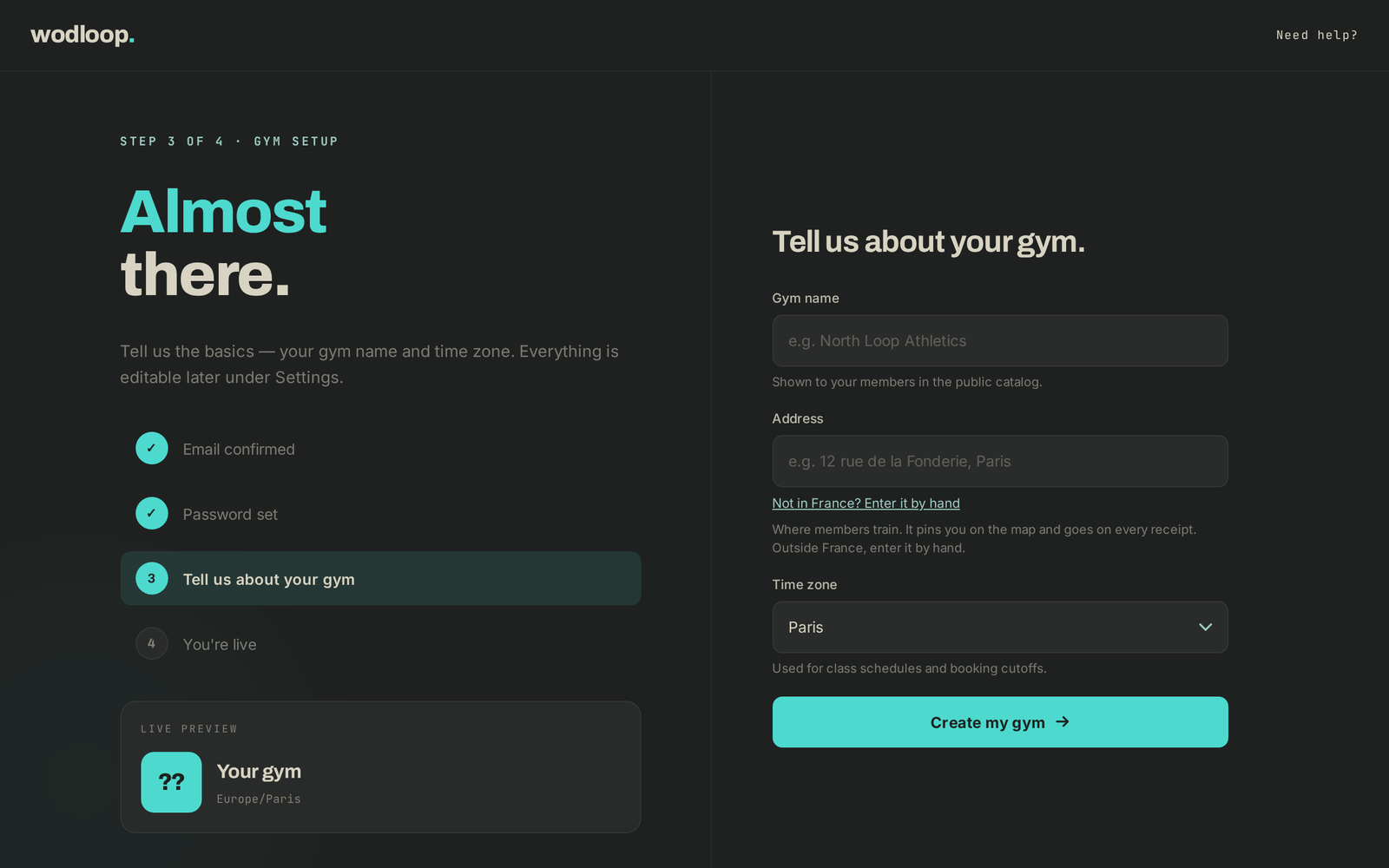
When you create your box (Gym name, Address, Time zone, then Create my gym), your trial starts and the box shows up in the Wodloop app straight away. A few steps are left, gathered on the Dashboard in the Get your facility live panel.
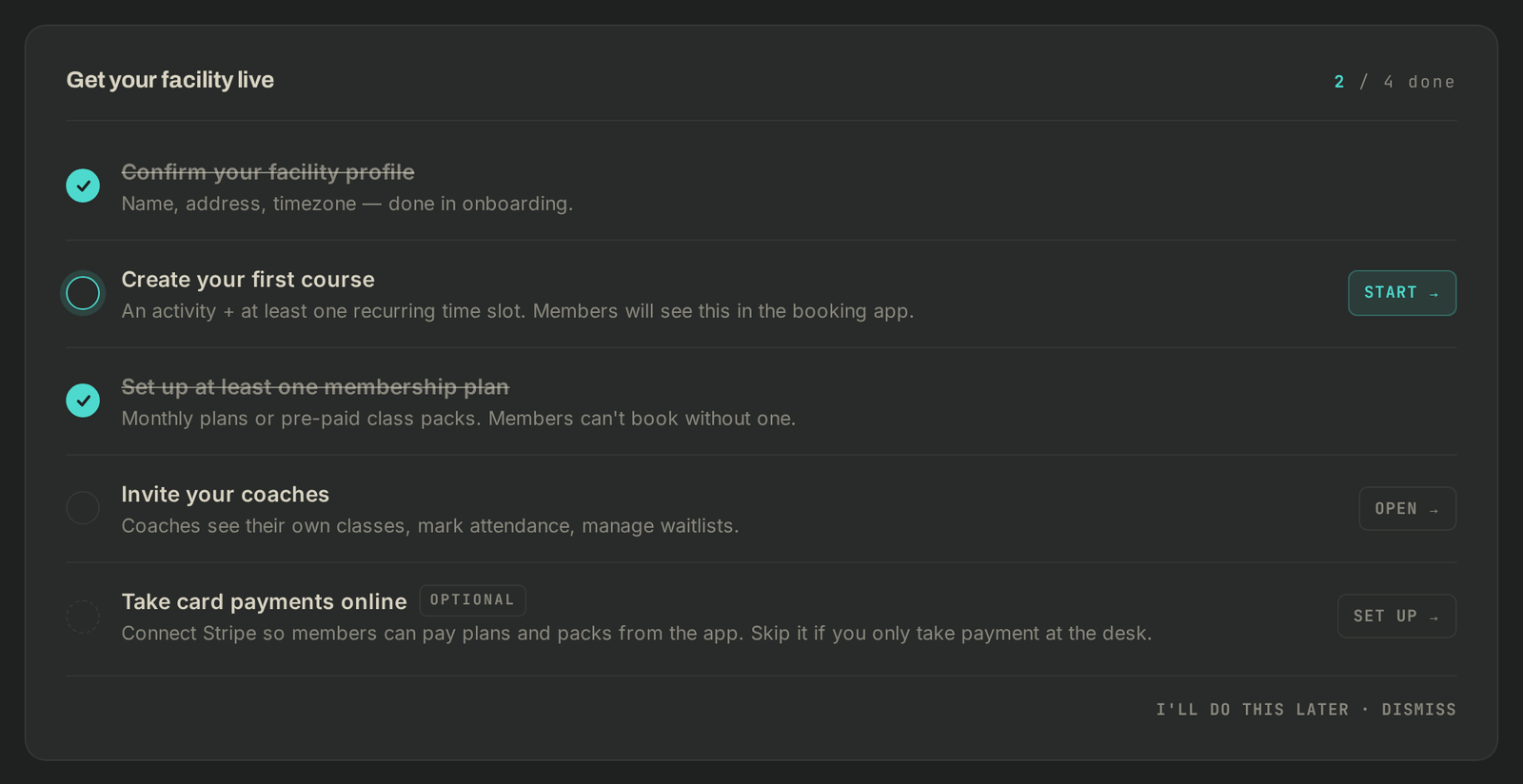
Follow the setup checklist
Each line has a button: Start → for the current step, Open → for the next ones. A finished step is ticked and struck through.
- Confirm your facility profile: already done when you created the box. You can complete the profile under Settings (see key settings).
- Create your first course: an activity and at least one recurring time slot. See Create your classes and schedule.
- Set up at least one membership plan: a monthly plan or a class pack. Without one, your members can't book. See Plans and packs.
- Invite your coaches: once you give them back-office access, they see their own classes and take attendance. See Coaches and sessions.
- Take card payments online (Optional): connect Stripe so members pay in the app. If you only take payment at the desk, skip it. See Collect what's owed.
The counter (for example "3 / 4 done") only counts the required steps. The panel goes away once they are all done.
Then add your members.
If it goes wrong
- You clicked I'll do this later · dismiss: the Resume setup button at the top of the dashboard brings the panel back while a step is left.
- A team member doesn't see the panel: that's expected, only the owner sees it.
- A step stays unticked although you did it: check that the right box is selected in the sidebar.
- Anything else: write to support@wodloop.com.